Showing posts with label windows phones. Show all posts

Thursday, 7 August 2014

Indian Telcos Want to Suppress WhatsApp Even if Consumers Suffer

whatsapp_access_denied.jpg

Also Read WeChat Offers Users Free Recharge up to Rs. 60 for Sharing Stickers

The Telecom Regulatory Authority of India (Trai) apparently wants to try wringing money out of messaging apps such as WhatsApp, Viber, Skype and WeChat on behalf of itself and mobile service providers who feel that they have the right to be compensated for revenues lost when people use such apps instead of making phone calls and sending SMS messages.
This is the same sort of logic that leads certain countries and municipalities to impose taxes on home solar panels because local coal-fired power plants are losing business.
One issue here is that service providers are banding together to try to extract more money than they already get because they sense an easy target. Another is that they're trying to use a neutral government agency to "regulate" their own competition. More importantly, the ideal of network neutrality is now under threat, because certain services might be burdened with some sort of tax or fee just for the privilege of being able to conduct business as usual.
Trai's plans are similar to recent moves by Internet service providers in the USA to lobby for the ability to set up Internet "fast lanes" and charge those companies able (if not willing) to pay more for priority (read: non-degraded) consumer experiences. Web startups and smaller companies would have a tough time surviving if they had to pay ISPs in order for consumers to be able to use them - regardless of the fact that ISPs are already being paid fees by users who should be able to use their bandwidth quotas in any way they like.
There's no question that handing service providers the ability to throttle certain services is bad for everyone involved - Internet users, entrepreneurs, and the tech economy as a whole. We need to be even more concerned that these service providers are trying to put themselves in a position of power over their competitors. Yes, long-distance telephony revenue has fallen thanks to VoIP, and people send fewer SMS messages because free Web messengers are available. So what? Business landscapes change all the time.
Everyone needs to adapt, not cling to the past. Cellular operators are not expected to compensate landline phone companies for the reduced usage of public pay-phones. Besides, the operators don't provide 2G/ 3G connectivity for free; there are monthly charges as well as data usage charges, and they aren't particularly fast, reliable or cheap.
Internet service providers and mobile operators create and maintain the pipes through which data flows, and they are paid not only by subscribers but also by content delivery networks which are widely used throughout the industry. The kind of data flowing through these pipes, its origins, destinations and relative proportions, are of no concern to them. They cannot be allowed to pick and choose who or what should get privileged carriage based on their own competitive interests.
Messenger apps have not replaced SMS entirely. People chat more via WhatsApp than they ever would have over SMS alone. There is no question of creating a "level playing field", as the mobile operators seem to be couching their argument. In fact by creating privileged levels of access to data transmission services they are actively creating a non-level field and stifling new innovations and developments that are of benefit to billions of people around the world.
If this proposal fails, there will be more complaints about messaging apps in order to demand "regulations" (and inevitably, scare tactics such as invoking the bogeys of terrorism, piracy, national security threats, pornography and who-knows-what-else will be used). It's now up to the Trai to ensure that ordinary users are not harmed and that the Indian tech business environment is not compromised by misguided policies.


SOURCE: http://gadgets.ndtv.com/

Also Read Micromax Replaces Samsung as Largest Mobile Phone Vendor in India: Report

NOTE: Feel Free To Comment....
Unknown  /  at  18:51  /  No comments

whatsapp_access_denied.jpg

Also Read WeChat Offers Users Free Recharge up to Rs. 60 for Sharing Stickers

The Telecom Regulatory Authority of India (Trai) apparently wants to try wringing money out of messaging apps such as WhatsApp, Viber, Skype and WeChat on behalf of itself and mobile service providers who feel that they have the right to be compensated for revenues lost when people use such apps instead of making phone calls and sending SMS messages.
This is the same sort of logic that leads certain countries and municipalities to impose taxes on home solar panels because local coal-fired power plants are losing business.
One issue here is that service providers are banding together to try to extract more money than they already get because they sense an easy target. Another is that they're trying to use a neutral government agency to "regulate" their own competition. More importantly, the ideal of network neutrality is now under threat, because certain services might be burdened with some sort of tax or fee just for the privilege of being able to conduct business as usual.
Trai's plans are similar to recent moves by Internet service providers in the USA to lobby for the ability to set up Internet "fast lanes" and charge those companies able (if not willing) to pay more for priority (read: non-degraded) consumer experiences. Web startups and smaller companies would have a tough time surviving if they had to pay ISPs in order for consumers to be able to use them - regardless of the fact that ISPs are already being paid fees by users who should be able to use their bandwidth quotas in any way they like.
There's no question that handing service providers the ability to throttle certain services is bad for everyone involved - Internet users, entrepreneurs, and the tech economy as a whole. We need to be even more concerned that these service providers are trying to put themselves in a position of power over their competitors. Yes, long-distance telephony revenue has fallen thanks to VoIP, and people send fewer SMS messages because free Web messengers are available. So what? Business landscapes change all the time.
Everyone needs to adapt, not cling to the past. Cellular operators are not expected to compensate landline phone companies for the reduced usage of public pay-phones. Besides, the operators don't provide 2G/ 3G connectivity for free; there are monthly charges as well as data usage charges, and they aren't particularly fast, reliable or cheap.
Internet service providers and mobile operators create and maintain the pipes through which data flows, and they are paid not only by subscribers but also by content delivery networks which are widely used throughout the industry. The kind of data flowing through these pipes, its origins, destinations and relative proportions, are of no concern to them. They cannot be allowed to pick and choose who or what should get privileged carriage based on their own competitive interests.
Messenger apps have not replaced SMS entirely. People chat more via WhatsApp than they ever would have over SMS alone. There is no question of creating a "level playing field", as the mobile operators seem to be couching their argument. In fact by creating privileged levels of access to data transmission services they are actively creating a non-level field and stifling new innovations and developments that are of benefit to billions of people around the world.
If this proposal fails, there will be more complaints about messaging apps in order to demand "regulations" (and inevitably, scare tactics such as invoking the bogeys of terrorism, piracy, national security threats, pornography and who-knows-what-else will be used). It's now up to the Trai to ensure that ordinary users are not harmed and that the Indian tech business environment is not compromised by misguided policies.


SOURCE: http://gadgets.ndtv.com/

Also Read Micromax Replaces Samsung as Largest Mobile Phone Vendor in India: Report

NOTE: Feel Free To Comment....

Wednesday, 6 August 2014

WeChat Offers Users Free Recharge up to Rs. 60 for Sharing Stickers

wechat_image_reuters.jpg

Also Read Micromax Replaces Samsung as Largest Mobile Phone Vendor in India: Report

WeChat on Wednesday introduced a new offer called 'Friends n Rewards' for Indian users who can now earn free talk time recharges of up to Rs. 60.
To qualify for the offer, WeChat app users need to send friends WeChat stickers daily in a group chat with a minimum of three friends. The Friends n Rewards offer is valid from August 4 to August 13. 
Users need to send stickers on all 10 days to win the entire Rs. 60 recharge, which can be redeemed between August 14 to August 20. The offer is valid only for Android, iOS, Windows Phone 8 and Blackberry users of WeChat. Notably, to be eligible to win free recharge, a minimum of 3 days of activity is mandatory. WeChat app users can log on to the 'WeChat Team official account' for more information, or visit the company's blog post on Tumblr.
wechat_offer_press_release_image.jpg
"To make this Friendship Day and Raksha Bandhan season extra special for its users, WeChat has introduced "Friends n Rewards" Initiative, allowing users to win a free recharge up to Rs. 60, just by expressing their love with their friend and family groups on WeChat," said company.
Recently, the social networking and instant messaging app made its message translation available for its Android users. To use the translate message feature, users need to long-press a message and then tap the arrow icon on the right-hand side to activate the tool, just like the WeChat app for iOS devices. The feature was originally rolled out to iOS users in May.
Other than the message translation feature, the WeChat app for Android also got a new password protect feature for group chats, the ability to tag favourite messages for faster searches, and the ability to select multiple messages and add them to Favourites.


Source: http://gadgets.ndtv.com/


Also Read How to Upload Videos to YouTube from Windows Phone 8.1 Smartphone?

NOTE: Feel Free To Comment....
Unknown  /  at  18:29  /  No comments

wechat_image_reuters.jpg

Also Read Micromax Replaces Samsung as Largest Mobile Phone Vendor in India: Report

WeChat on Wednesday introduced a new offer called 'Friends n Rewards' for Indian users who can now earn free talk time recharges of up to Rs. 60.
To qualify for the offer, WeChat app users need to send friends WeChat stickers daily in a group chat with a minimum of three friends. The Friends n Rewards offer is valid from August 4 to August 13. 
Users need to send stickers on all 10 days to win the entire Rs. 60 recharge, which can be redeemed between August 14 to August 20. The offer is valid only for Android, iOS, Windows Phone 8 and Blackberry users of WeChat. Notably, to be eligible to win free recharge, a minimum of 3 days of activity is mandatory. WeChat app users can log on to the 'WeChat Team official account' for more information, or visit the company's blog post on Tumblr.
wechat_offer_press_release_image.jpg
"To make this Friendship Day and Raksha Bandhan season extra special for its users, WeChat has introduced "Friends n Rewards" Initiative, allowing users to win a free recharge up to Rs. 60, just by expressing their love with their friend and family groups on WeChat," said company.
Recently, the social networking and instant messaging app made its message translation available for its Android users. To use the translate message feature, users need to long-press a message and then tap the arrow icon on the right-hand side to activate the tool, just like the WeChat app for iOS devices. The feature was originally rolled out to iOS users in May.
Other than the message translation feature, the WeChat app for Android also got a new password protect feature for group chats, the ability to tag favourite messages for faster searches, and the ability to select multiple messages and add them to Favourites.


Source: http://gadgets.ndtv.com/


Also Read How to Upload Videos to YouTube from Windows Phone 8.1 Smartphone?

NOTE: Feel Free To Comment....

Posted in: , , , Read Complete Article»

Wednesday, 18 June 2014

Windows Phone 8.1: Top eight new features

microsoft_build_conference_windows_phone_8_1_ap.jpg

Also Read How to Watch Fifa World Cup 2014 Live on Your PC, Smartphone or Tablet

Microsoft launched its highly-anticipated Windows Phone 8.1 update at its keynote address at the Build 2014 conference on Wednesday. The event also saw the unveiling of the Windows 8.1 Update operating system version, alongside three new devices, Nokia Lumia 930, Lumia 630 and Lumia 635, which will be the platform lead devices for Windows Phone 8.1 OS version.
Microsoft's Joe Belfiore, VP Windows Phone program management and design, introduced a bevy of enhanced features in the Windows Phone 8.1 that the Redmond giant hopes will bring more personal and smarter experience for consumers.
Microsoft has announced that Windows Phone 8.1 will start rolling out to Windows Phone 8 users in coming months. The Redmond giant also confirmed that the entire Nokia Lumia range will get OTA (over-the-air) update called Lumia Cyan, which will include Windows Phone 8.1 features and the new Lumia features into one update.
We've broken down the eight biggest new features in the Windows Phone 8.1 including the ones that made it into the highlights - Cortana, Action Centre, Word Flow and more personalised Start Screen.
1. Greater Start Screen personalisation
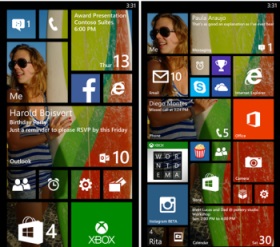
Microsoft in an attempt to offer more customisable options to Windows Phone users, has added 'Start background' feature that allows users to add an image to the tiles on the Start screen of the device.
new_start_screen_personalisation_microsoft.jpg
The feature will add an image of the user's choice to multiple tiles on the Start screen. Earlier, the Live Tiles on the Start screen on Windows Phone 8 were limited to solid colours.
In 2013, Microsoft added the third Live Tile column on the Start screen of the Nokia Lumia 1520, and then left it to manufacturer adoption. However, with the Windows Phone 8.1, the company has now added an extra column of Live Tiles on all screen sizes, with users able to choose whether to turn this feature on.
2. Cortana: Finally arrives to take on Apple's Siri and Google's Google Now
One of the highlight features of Windows Phone 8.1 is Cortana, which is Microsoft's voice-based virtual assistant. The Redmond giant's Cortana is based on a popular AI character in Microsoft's blockbuster video game franchise, Halo.

Also Read Apple Introduces Cheaper, Lower-Powered iMac

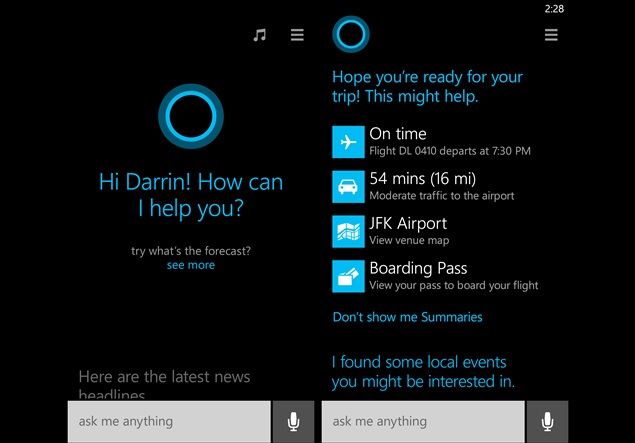
Cortana is powered by Bing and is similar to Apple's Siri or Google Now, completely replacing the search feature in WP8.1. Microsoft's Joe Belfiore claimed that the new digital assistant from Microsoft will get better with time as a user spends more time with it by asking questions to Cortana, filling up details in its Notebook section.
windows_phone_8_1_cortana_screenshot.jpg
Cortana can be launched by pressing the Live Tile placed on the Start screen or by pressing the Search button on the Windows Phone device. Belfiore said that Cortana can interact verbally or by typing, and stressed its ability to understand natural language voice commands. It can also interact with third party apps, though developers will have to build Cortana-compatibility into their apps.
Microsoft has announced that Cortana will be available first in the US as a 'beta' and later will released in the UK and China in the second half of 2014, while in other countries Cortana might reach by 2015.
windows_phone_8_1_action_centre.jpg
3. Action Centre for notifications

Also Read iOS 8 Launch, Hidden Features, Compatible Devices

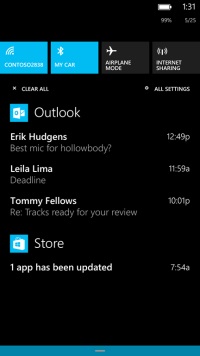
Microsoft has finally launched one of the most awaited features on Windows Phone platform, the Action Centre. The Windows Phone 8.1 update brings the Action Centre to all Windows Phone-based devices which will show notifications for calls, messages, emails, apps and others. It will also offer quick settings access to Flight Mode, Bluetooth, Wi-Fi, and Rotation Lock options. Notably, the quick access options are customisable.
The Action Centre for Windows Phone 8.1 can be accessed by a simple drop down swipe gesture like seen in Android and iOS.
4. Word Flow Keyboard
Another big addition in the Windows Phone 8.1 has been the introduction of the Word Flow Keyboard, which is a Swype keyboard-like feature for Windows Phone users. The Word Flow Keyboard allows users to glide over the display and type words.
Microsoft claims that the Word Flow Keyboard is one of the 'most intuitive smartphone keyboards' and learns from users writing style. Belfiore noted that the Word Flow Keyboard supports 16 languages, though has not named the languages supported.
Belfiore even claimed that, thanks to Word Flow Keyboard, a kid was able break the Guinness World Record for fastest writing on a smartphone earlier held by Swype keyboard on a Samsung Galaxy S4.
skype_dialler_integration_windows_phone_8_1.jpg
5. Skype Integration
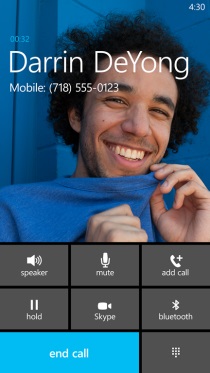
Microsoft has also upgraded the Skype integration in Windows Phone devices with its latest Windows Phone 8.1. Now, the new Skype app for Windows Phone 8.1 comes with dialler integration that allows a user to switch a regular call to a Skype video call with a click of a button. Further, Skype has also been designed to work with Cortana, as users can setup Skype calls via the new voice-based virtual assistant.
6. Upgraded imaging experience
Microsoft takes the Windows Phone photography experience to the next level with the revamped Camera Roll, which gives quick access to clicked images, image tweaking tools and sharing capabilities.
The Smart Shots, Cinemagraphs, and Refocus photos options are directly accessible now from Camera Roll. Microsoft has also added the burst mode features to its Windows Phone 8.1 for clicking continuous images.
Creative Studio has been also added to the Camera Roll, which can use five new filters. The Nokia Storyteller has also received a slight addition with new video slideshow option that allows sharing via Facebook and Twitter.
7. New Sense feature for Windows Phone users
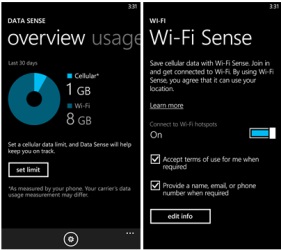
Microsoft has introduced the new Sense apps that include Data Sense, Wi-Fi Sense and Storage Sense.
sense_apps_windows_phone_8_1.jpg
Data Sense gives a detailed track of data usage on a Windows Phone, which could be braked down according to time- a month, a week etc. Data Sense includes a 'high savings' mode that the company claims will compress the images browsed on the Web, so a user can search more without with less data usage.
Another Sense app is Wi-Fi Sense, which automatically connects to a nearby Wi-Fi hotspot (when detected) to conserve cellular data.
Notably, when Wi-Fi is turned off in Wi-Fi Sense; Cortana can automatically turn it on, when a favourite location with hotspot is available.
Storage Sense can help users manage content stored on the microSD card and inbuilt storage by moving apps, music, images and videos between inbuilt storage and microSD card.
In addition, Microsoft has also improved its Battery Sense feature, giving a breakdown of apps' battery consumption, and also includes an 'automatic mode' in the Battery Saver option that can help extend battery life.
8. Slew of new delights
Apart from the major highlights of the Windows Phone 8.1, Microsoft has also added a number of minor tweaks to its OS.
nokia_lumia_630_lumia_635.jpg
After multiple leaks, the onscreen keys are official with Windows Phone 8.1. The onscreen keys for Search, Start and Back will now appear at the bottom of the display and this will mean that future Windows Phone 8.1-based devices will not feature the three capacitive buttons at the bottom of the front panel.
new_lockscreen_windows_phone8_1.jpg
Microsoft has also introduced the new Lock Screen, which now comes with multiple Lock Screen themes featuring different visuals and animations - APIs are also available for developers to create their own themes and widgets.
The Calendar app has received a redesign and now shows a week view, along with a weather widget which has been integrated into the Calendar app. It will show at the top.
Various apps such as Music, Video and Podcasts have received improvements and are now split apps, all capable of update vie the Store.
The Internet Explorer 11 for Windows Phone 8.1 was also introduced. The new IE11 comes with new features such as InPrivate browsing, password caching, and a super-handy reading mode.


NOTE: Feel Free To Comment....
Unknown  /  at  21:46  /  No comments

microsoft_build_conference_windows_phone_8_1_ap.jpg

Also Read How to Watch Fifa World Cup 2014 Live on Your PC, Smartphone or Tablet

Microsoft launched its highly-anticipated Windows Phone 8.1 update at its keynote address at the Build 2014 conference on Wednesday. The event also saw the unveiling of the Windows 8.1 Update operating system version, alongside three new devices, Nokia Lumia 930, Lumia 630 and Lumia 635, which will be the platform lead devices for Windows Phone 8.1 OS version.
Microsoft's Joe Belfiore, VP Windows Phone program management and design, introduced a bevy of enhanced features in the Windows Phone 8.1 that the Redmond giant hopes will bring more personal and smarter experience for consumers.
Microsoft has announced that Windows Phone 8.1 will start rolling out to Windows Phone 8 users in coming months. The Redmond giant also confirmed that the entire Nokia Lumia range will get OTA (over-the-air) update called Lumia Cyan, which will include Windows Phone 8.1 features and the new Lumia features into one update.
We've broken down the eight biggest new features in the Windows Phone 8.1 including the ones that made it into the highlights - Cortana, Action Centre, Word Flow and more personalised Start Screen.
1. Greater Start Screen personalisation
Microsoft in an attempt to offer more customisable options to Windows Phone users, has added 'Start background' feature that allows users to add an image to the tiles on the Start screen of the device.
new_start_screen_personalisation_microsoft.jpg
The feature will add an image of the user's choice to multiple tiles on the Start screen. Earlier, the Live Tiles on the Start screen on Windows Phone 8 were limited to solid colours.
In 2013, Microsoft added the third Live Tile column on the Start screen of the Nokia Lumia 1520, and then left it to manufacturer adoption. However, with the Windows Phone 8.1, the company has now added an extra column of Live Tiles on all screen sizes, with users able to choose whether to turn this feature on.
2. Cortana: Finally arrives to take on Apple's Siri and Google's Google Now
One of the highlight features of Windows Phone 8.1 is Cortana, which is Microsoft's voice-based virtual assistant. The Redmond giant's Cortana is based on a popular AI character in Microsoft's blockbuster video game franchise, Halo.

Also Read Apple Introduces Cheaper, Lower-Powered iMac

Cortana is powered by Bing and is similar to Apple's Siri or Google Now, completely replacing the search feature in WP8.1. Microsoft's Joe Belfiore claimed that the new digital assistant from Microsoft will get better with time as a user spends more time with it by asking questions to Cortana, filling up details in its Notebook section.
windows_phone_8_1_cortana_screenshot.jpg
Cortana can be launched by pressing the Live Tile placed on the Start screen or by pressing the Search button on the Windows Phone device. Belfiore said that Cortana can interact verbally or by typing, and stressed its ability to understand natural language voice commands. It can also interact with third party apps, though developers will have to build Cortana-compatibility into their apps.
Microsoft has announced that Cortana will be available first in the US as a 'beta' and later will released in the UK and China in the second half of 2014, while in other countries Cortana might reach by 2015.
windows_phone_8_1_action_centre.jpg
3. Action Centre for notifications

Also Read iOS 8 Launch, Hidden Features, Compatible Devices

Microsoft has finally launched one of the most awaited features on Windows Phone platform, the Action Centre. The Windows Phone 8.1 update brings the Action Centre to all Windows Phone-based devices which will show notifications for calls, messages, emails, apps and others. It will also offer quick settings access to Flight Mode, Bluetooth, Wi-Fi, and Rotation Lock options. Notably, the quick access options are customisable.
The Action Centre for Windows Phone 8.1 can be accessed by a simple drop down swipe gesture like seen in Android and iOS.
4. Word Flow Keyboard
Another big addition in the Windows Phone 8.1 has been the introduction of the Word Flow Keyboard, which is a Swype keyboard-like feature for Windows Phone users. The Word Flow Keyboard allows users to glide over the display and type words.
Microsoft claims that the Word Flow Keyboard is one of the 'most intuitive smartphone keyboards' and learns from users writing style. Belfiore noted that the Word Flow Keyboard supports 16 languages, though has not named the languages supported.
Belfiore even claimed that, thanks to Word Flow Keyboard, a kid was able break the Guinness World Record for fastest writing on a smartphone earlier held by Swype keyboard on a Samsung Galaxy S4.
skype_dialler_integration_windows_phone_8_1.jpg
5. Skype Integration
Microsoft has also upgraded the Skype integration in Windows Phone devices with its latest Windows Phone 8.1. Now, the new Skype app for Windows Phone 8.1 comes with dialler integration that allows a user to switch a regular call to a Skype video call with a click of a button. Further, Skype has also been designed to work with Cortana, as users can setup Skype calls via the new voice-based virtual assistant.
6. Upgraded imaging experience
Microsoft takes the Windows Phone photography experience to the next level with the revamped Camera Roll, which gives quick access to clicked images, image tweaking tools and sharing capabilities.
The Smart Shots, Cinemagraphs, and Refocus photos options are directly accessible now from Camera Roll. Microsoft has also added the burst mode features to its Windows Phone 8.1 for clicking continuous images.
Creative Studio has been also added to the Camera Roll, which can use five new filters. The Nokia Storyteller has also received a slight addition with new video slideshow option that allows sharing via Facebook and Twitter.
7. New Sense feature for Windows Phone users
Microsoft has introduced the new Sense apps that include Data Sense, Wi-Fi Sense and Storage Sense.
sense_apps_windows_phone_8_1.jpg
Data Sense gives a detailed track of data usage on a Windows Phone, which could be braked down according to time- a month, a week etc. Data Sense includes a 'high savings' mode that the company claims will compress the images browsed on the Web, so a user can search more without with less data usage.
Another Sense app is Wi-Fi Sense, which automatically connects to a nearby Wi-Fi hotspot (when detected) to conserve cellular data.
Notably, when Wi-Fi is turned off in Wi-Fi Sense; Cortana can automatically turn it on, when a favourite location with hotspot is available.
Storage Sense can help users manage content stored on the microSD card and inbuilt storage by moving apps, music, images and videos between inbuilt storage and microSD card.
In addition, Microsoft has also improved its Battery Sense feature, giving a breakdown of apps' battery consumption, and also includes an 'automatic mode' in the Battery Saver option that can help extend battery life.
8. Slew of new delights
Apart from the major highlights of the Windows Phone 8.1, Microsoft has also added a number of minor tweaks to its OS.
nokia_lumia_630_lumia_635.jpg
After multiple leaks, the onscreen keys are official with Windows Phone 8.1. The onscreen keys for Search, Start and Back will now appear at the bottom of the display and this will mean that future Windows Phone 8.1-based devices will not feature the three capacitive buttons at the bottom of the front panel.
new_lockscreen_windows_phone8_1.jpg
Microsoft has also introduced the new Lock Screen, which now comes with multiple Lock Screen themes featuring different visuals and animations - APIs are also available for developers to create their own themes and widgets.
The Calendar app has received a redesign and now shows a week view, along with a weather widget which has been integrated into the Calendar app. It will show at the top.
Various apps such as Music, Video and Podcasts have received improvements and are now split apps, all capable of update vie the Store.
The Internet Explorer 11 for Windows Phone 8.1 was also introduced. The new IE11 comes with new features such as InPrivate browsing, password caching, and a super-handy reading mode.


NOTE: Feel Free To Comment....
Posted in: , , Read Complete Article»

Wednesday, 11 June 2014

How to Get – Use Cortana on Windows Phone 8.1 Outside US?


With the release of Windows Phone 8.1, the Windows Phone 8 smartphone owners definitely had a reason to rejoice, because not only it brought several new features to the platform, but it also made Windows Phone one of the serious mobile OS contender in the smartphone market. Cortana (Microsoft’s voice based personal assistant) for Windows Phone 8.1 was one among the major feature Microsoft introduced with the release of Windows Phone 8.1. Although Cortana is still in beta, Microsoft has restricted its use to US only. Now if you are Windows Phone 8.1 user, based in outside the US then officially Cortana is not available for you.

Also Read How to Clean Facebook, Twitter, and Other Social Websites

use-cortana-any-country-windows-phone-8.1
However, here is a simple workaround by which you can use Cortana on any Windows Phone 8.1 running Smartphone irrespective of the country you live in. This is a simple trick, in which you’ll be changing the language, speech language and the country to get Cortana working in your country. Follow these steps for the same.

Get Cortana on Windows Phone 8.1 Smartphone in India

Step 1: The first and important step is to make sure that your Windows Phone runs on the latest Windows Phone 8.1 version. So go to settings > about > software > Phone Update. If you have already updated your device to Windows Phone 8.1 then proceed with step 2.
Step 2: Now go to Settings, select Language
Step 3: if you see the Language already has been set to English (US), then proceed with step 3 else make these changes. Tap on Add Languages and add English (US). Now again tap and hold the language and select Move up to make it to the top and it will be set as preferred language.

Also Read How to Turn Off Screen Display using Shortcut on Windows

Step 4: Now again tap on Settings > Region > select Unites States as country. Once done, restart your device and you will find Cortana in apps list.
Step 5: Go to Settings > Speech > Speech Language
Step 6: Select English (United States) and wait until the speech pack downloaded to your device. Once downloaded, restart your device and you are ready to go.
Note: Step 5 and 6 are only necessary if your Speech Language is not English (United States). If it is already English (US) then no need to follow these steps.
By following the above steps, you can use Cortana in any country you live in. Now launch Cortana, complete the setup and give the commands. Don’t forget to share this article on social media if you found this helpful.


Also Read 10 New iOS 8 Features Showcased at WWDC

NOTE: Feel Free To Comment....
Unknown  /  at  21:47  /  No comments


With the release of Windows Phone 8.1, the Windows Phone 8 smartphone owners definitely had a reason to rejoice, because not only it brought several new features to the platform, but it also made Windows Phone one of the serious mobile OS contender in the smartphone market. Cortana (Microsoft’s voice based personal assistant) for Windows Phone 8.1 was one among the major feature Microsoft introduced with the release of Windows Phone 8.1. Although Cortana is still in beta, Microsoft has restricted its use to US only. Now if you are Windows Phone 8.1 user, based in outside the US then officially Cortana is not available for you.

Also Read How to Clean Facebook, Twitter, and Other Social Websites

use-cortana-any-country-windows-phone-8.1
However, here is a simple workaround by which you can use Cortana on any Windows Phone 8.1 running Smartphone irrespective of the country you live in. This is a simple trick, in which you’ll be changing the language, speech language and the country to get Cortana working in your country. Follow these steps for the same.

Get Cortana on Windows Phone 8.1 Smartphone in India

Step 1: The first and important step is to make sure that your Windows Phone runs on the latest Windows Phone 8.1 version. So go to settings > about > software > Phone Update. If you have already updated your device to Windows Phone 8.1 then proceed with step 2.
Step 2: Now go to Settings, select Language
Step 3: if you see the Language already has been set to English (US), then proceed with step 3 else make these changes. Tap on Add Languages and add English (US). Now again tap and hold the language and select Move up to make it to the top and it will be set as preferred language.

Also Read How to Turn Off Screen Display using Shortcut on Windows

Step 4: Now again tap on Settings > Region > select Unites States as country. Once done, restart your device and you will find Cortana in apps list.
Step 5: Go to Settings > Speech > Speech Language
Step 6: Select English (United States) and wait until the speech pack downloaded to your device. Once downloaded, restart your device and you are ready to go.
Note: Step 5 and 6 are only necessary if your Speech Language is not English (United States). If it is already English (US) then no need to follow these steps.
By following the above steps, you can use Cortana in any country you live in. Now launch Cortana, complete the setup and give the commands. Don’t forget to share this article on social media if you found this helpful.


Also Read 10 New iOS 8 Features Showcased at WWDC

NOTE: Feel Free To Comment....

Posted in: , Read Complete Article»

Monday, 26 May 2014

How To Prepare A Smartphone, Tablet or PC For Selling

If you decide that it’s time to get rid of your old smartphone, tablet or PC, then it’s important to prepare the device before handing it over to its new owner. Making a few small preparations will prevent anyone from gaining access to your personal data and save you having any issues with authorizing DRM’d purchases.
Also Read 

1. Take A Backup

This may sound really obvious but is essential if you want to transfer your personal files to your new device. You will likely already have backups saved and nowadays, thanks to cloud services, it is easier than ever to store all your important data, which can be accessed on your current PC, tablet or smartphone. However, it may be that you still have some local files saved on your PC for example, so make sure you don’t forget to back those up too.
Backing up and Android smartphone
Most smartphones and tablets are backed up automatically so you don’t need to worry too much but it is worth checking Android data is automatically backed up if you are using an Android device, as things like photos are not saved online unless you configure the settings. Photos are automatically saved to the iCloud if you are using an Apple device and you have Photo Stream enabled.

2. DRM Purchases

Sometimes when you purchase content it is subject to Digital Rights Management (DRM) technology and therefore locks itself into your PC. An example of this is content purchased through the iTunes Store, where your computer needs to be ‘authorized’ before being allowed to play the content. You are allowed to authorize up to five machines at any one time but if you sell your PC, then that’s one authorization lost.
Also Read 
To stop this from happening you will need to deauthorize your computer. Using iTunes as example, you simply go to the iTunes Store menu and select ‘Deauthorize This Computer’.
If you are getting rid of  a smartphone or tablet, then revoking authorization isn’t really an issue so you can just skip this step.

3. Factory Reset

If you are running Windows 8, then the Reset Your PC feature will restore Windows to its factory default settings. Your entire device will be wiped, along with all of your personal files.
Windows 8 reset
For smartphones and tablets you can use the Factory Reset option. For iOS devices then go to Settings>General>Reset and then tap Erase All Content and Settings. For Android, navigate to the Settings screen and then select Back up and reset, followed by Erase All Content and Settings.
If you follow these simple steps then your old device will be ready to pass on to its new owner, without the risk of them recovering your personal files.


Also Read
NOTE: Feel Free To Comment....
Unknown  /  at  11:51  /  No comments

If you decide that it’s time to get rid of your old smartphone, tablet or PC, then it’s important to prepare the device before handing it over to its new owner. Making a few small preparations will prevent anyone from gaining access to your personal data and save you having any issues with authorizing DRM’d purchases.
Also Read 

1. Take A Backup

This may sound really obvious but is essential if you want to transfer your personal files to your new device. You will likely already have backups saved and nowadays, thanks to cloud services, it is easier than ever to store all your important data, which can be accessed on your current PC, tablet or smartphone. However, it may be that you still have some local files saved on your PC for example, so make sure you don’t forget to back those up too.
Backing up and Android smartphone
Most smartphones and tablets are backed up automatically so you don’t need to worry too much but it is worth checking Android data is automatically backed up if you are using an Android device, as things like photos are not saved online unless you configure the settings. Photos are automatically saved to the iCloud if you are using an Apple device and you have Photo Stream enabled.

2. DRM Purchases

Sometimes when you purchase content it is subject to Digital Rights Management (DRM) technology and therefore locks itself into your PC. An example of this is content purchased through the iTunes Store, where your computer needs to be ‘authorized’ before being allowed to play the content. You are allowed to authorize up to five machines at any one time but if you sell your PC, then that’s one authorization lost.
Also Read 
To stop this from happening you will need to deauthorize your computer. Using iTunes as example, you simply go to the iTunes Store menu and select ‘Deauthorize This Computer’.
If you are getting rid of  a smartphone or tablet, then revoking authorization isn’t really an issue so you can just skip this step.

3. Factory Reset

If you are running Windows 8, then the Reset Your PC feature will restore Windows to its factory default settings. Your entire device will be wiped, along with all of your personal files.
Windows 8 reset
For smartphones and tablets you can use the Factory Reset option. For iOS devices then go to Settings>General>Reset and then tap Erase All Content and Settings. For Android, navigate to the Settings screen and then select Back up and reset, followed by Erase All Content and Settings.
If you follow these simple steps then your old device will be ready to pass on to its new owner, without the risk of them recovering your personal files.


Also Read
NOTE: Feel Free To Comment....

Sunday, 25 May 2014

How to Block – Unblock Calls and SMS on Nokia Lumia Windows Phone 8?


Also Read 

How To Fix Google Play “No Connection – Retry” Problem

If you are using a Nokia Lumia Windows Phone 8 running smartphone then you can easily black list contacts of spammers to block calls and SMS on your phone. It happens that we get calls from marketing agency executives, who annoys you by calling everyday just to sell something, in which you have no internet. It is not limited to calls only; they can even annoy you by sending text messages. The best way to get rid of these spammers is by blocking them from calling you and sending text messages to your phone.
Now if you are using a Nokia Lumia Windows Phone 8 smartphone then this tutorial will help you to block calls and SMS on your smartphone. Follow these steps to know how you can do this.


Note: Before proceeding with these steps, make sure that you have latest version of Windows Phone 8 installed.

How to Block SMS and Calls on Windows Phone 8

Step 1: Go to Apps list by swiping left
Step 2: Scroll down and click on Settings
windows-phone-8-settings
Step 3: In Settings, find and tap on Call + SMS filter
windows-phone-8-calls-sms-filter

Also Read What is 2048, How to Play 2048 Game, Download 2048 Game For Android?

Step 4: Now you will be asked to accept Nokia terms of use and privacy policy. Accept it to turn on call and SMS filter.
windows-phone-8-accept-terms
Step 5: Next step is to block calls by adding numbers to black/blocked list
Step 6: To do this go to contacts/ call log by taping on Phone app
Step 7: Find and long tap on the number you want to block and select block number from the options.
Note: If you want to block a SMS sender number, which is not saved in your call log, then long-tap on that SMS and select block number.
Step 8: Tap on OK to confirm it.
windows-phone-8-block-number

How to Unblock Blocked Numbers

Also Read 7 Things You Didn’t Know About Microsoft's Surface Pro 3

Now if you change your mind and want to unblock a blocked number then follow these steps to unblock it.
Step 1: Go to Apps List
Step 2: Tap on Settings
Step 3: Tap on Call + SMS filter
Step 4: Tap on Blocked number
Step 5: Tap on the number you want to unblock
Step 6: Tap on Unblock (bottom) to unblock that number from blocked list
windows-phone-8-unblock
By following the above steps, you can block SMS and calls on Nokia Lumia Windows Phone 8 phone and stop getting annoyed by spammers, marketers and unwanted calls.


Also Read How to download the free Windows Phone 8.1 Preview for developers

NOTE: Feel Free To Comment....
Unknown  /  at  15:28  /  No comments


Also Read 

How To Fix Google Play “No Connection – Retry” Problem

If you are using a Nokia Lumia Windows Phone 8 running smartphone then you can easily black list contacts of spammers to block calls and SMS on your phone. It happens that we get calls from marketing agency executives, who annoys you by calling everyday just to sell something, in which you have no internet. It is not limited to calls only; they can even annoy you by sending text messages. The best way to get rid of these spammers is by blocking them from calling you and sending text messages to your phone.
Now if you are using a Nokia Lumia Windows Phone 8 smartphone then this tutorial will help you to block calls and SMS on your smartphone. Follow these steps to know how you can do this.


Note: Before proceeding with these steps, make sure that you have latest version of Windows Phone 8 installed.

How to Block SMS and Calls on Windows Phone 8

Step 1: Go to Apps list by swiping left
Step 2: Scroll down and click on Settings
windows-phone-8-settings
Step 3: In Settings, find and tap on Call + SMS filter
windows-phone-8-calls-sms-filter

Also Read What is 2048, How to Play 2048 Game, Download 2048 Game For Android?

Step 4: Now you will be asked to accept Nokia terms of use and privacy policy. Accept it to turn on call and SMS filter.
windows-phone-8-accept-terms
Step 5: Next step is to block calls by adding numbers to black/blocked list
Step 6: To do this go to contacts/ call log by taping on Phone app
Step 7: Find and long tap on the number you want to block and select block number from the options.
Note: If you want to block a SMS sender number, which is not saved in your call log, then long-tap on that SMS and select block number.
Step 8: Tap on OK to confirm it.
windows-phone-8-block-number

How to Unblock Blocked Numbers

Also Read 7 Things You Didn’t Know About Microsoft's Surface Pro 3

Now if you change your mind and want to unblock a blocked number then follow these steps to unblock it.
Step 1: Go to Apps List
Step 2: Tap on Settings
Step 3: Tap on Call + SMS filter
Step 4: Tap on Blocked number
Step 5: Tap on the number you want to unblock
Step 6: Tap on Unblock (bottom) to unblock that number from blocked list
windows-phone-8-unblock
By following the above steps, you can block SMS and calls on Nokia Lumia Windows Phone 8 phone and stop getting annoyed by spammers, marketers and unwanted calls.


Also Read How to download the free Windows Phone 8.1 Preview for developers

NOTE: Feel Free To Comment....

Tuesday, 20 May 2014

How to Download and Use Google Maps for Android, iOS Without Internet?

Save_Maps_Offline_635.jpg

Also Read Best translator apps for Android

Lost in Nowhereland with no Internet connection as far as you can see? As always, Google Maps can help you find your way back, as long as you have an iOS or an Android device, even if you are offline. Google recently added a feature to Google Maps, which lets you save maps to your phone.
Yes, you can now check maps even when there is no Internet connection. The downside is that you will not have access to route information, addresses, navigation, traffic, and a host of other data that require an Internet connection. However, having map data for reference might just save you a lot of time. Here's how to use this nifty feature on iOS and Android. The steps are identical for both platforms.
 

What you need to use this feature

 
You're going to need an Android or iOS device. Unfortunately, this feature isn't available on other platforms. Google Maps version 3, which was released last week on iOS, added support for offline maps. Android users, be sure to update to Google Maps version 8 before following the steps listed below.

How to save maps offline?

Also Read How to Download Videos From YouTube


1. To use this feature, first sign in to your Google account to use this feature.
 
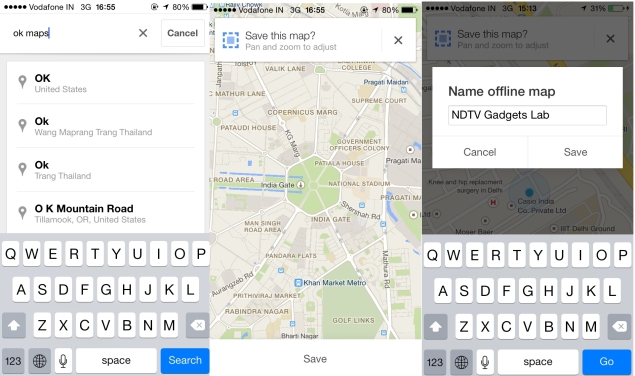
2. Type "OK Maps" in the search bar and hit the search button. A dialog at the top of the map asks "Save this map?" with a Save button at the bottom of the screen.
 
3. At this point, you can zoom in or out, and move the map, to select the area you want to save. Everything that is on-screen gets downloaded, so if you zoom out to save the entire Delhi area, for example, then you can later zoom in to see the individual localities and streets.

4. Once you've selected the area, tap the Save button at the bottom of the screen. A dialogue box pops up and you are asked to enter a name for the map. Just enter a name and tap on Save.
 
5. Accessing offline maps is easy. Just tap the 'person' icon, which is next to the directions icon on the search bar. This will take you to your profile. Scroll to the bottom to see your saved maps. You can rename saved maps in case you plan to save more than one.
 
There are certain limitations to saving offline maps. Zoom out too far and you will see an error saying that the map area can't be saved because it is too large. We were able to save almost all of Delhi, but Google Maps deemed the area "too large" when we tried to save National Capital Region (NCR).
There's nothing stopping you from saving multiple maps to cover a large area, in case you're worried about that. Another limitation is that map data is available only for 30 days. You'll have to download maps again after this.
The good thing is that the saved map of Delhi occupied just 9.9 MB of space on our phones. That's good news for those who are running low on storage space.


Source: http://gadgets.ndtv.com


Also Read How To Fix Android Touch Screen Not Working Problem?

NOTE: Feel Free To Comment....
Unknown  /  at  13:49  /  No comments

Save_Maps_Offline_635.jpg

Also Read Best translator apps for Android

Lost in Nowhereland with no Internet connection as far as you can see? As always, Google Maps can help you find your way back, as long as you have an iOS or an Android device, even if you are offline. Google recently added a feature to Google Maps, which lets you save maps to your phone.
Yes, you can now check maps even when there is no Internet connection. The downside is that you will not have access to route information, addresses, navigation, traffic, and a host of other data that require an Internet connection. However, having map data for reference might just save you a lot of time. Here's how to use this nifty feature on iOS and Android. The steps are identical for both platforms.
 

What you need to use this feature

 
You're going to need an Android or iOS device. Unfortunately, this feature isn't available on other platforms. Google Maps version 3, which was released last week on iOS, added support for offline maps. Android users, be sure to update to Google Maps version 8 before following the steps listed below.

How to save maps offline?

Also Read How to Download Videos From YouTube


1. To use this feature, first sign in to your Google account to use this feature.
 
2. Type "OK Maps" in the search bar and hit the search button. A dialog at the top of the map asks "Save this map?" with a Save button at the bottom of the screen.
 
3. At this point, you can zoom in or out, and move the map, to select the area you want to save. Everything that is on-screen gets downloaded, so if you zoom out to save the entire Delhi area, for example, then you can later zoom in to see the individual localities and streets.

4. Once you've selected the area, tap the Save button at the bottom of the screen. A dialogue box pops up and you are asked to enter a name for the map. Just enter a name and tap on Save.
 
5. Accessing offline maps is easy. Just tap the 'person' icon, which is next to the directions icon on the search bar. This will take you to your profile. Scroll to the bottom to see your saved maps. You can rename saved maps in case you plan to save more than one.
 
There are certain limitations to saving offline maps. Zoom out too far and you will see an error saying that the map area can't be saved because it is too large. We were able to save almost all of Delhi, but Google Maps deemed the area "too large" when we tried to save National Capital Region (NCR).
There's nothing stopping you from saving multiple maps to cover a large area, in case you're worried about that. Another limitation is that map data is available only for 30 days. You'll have to download maps again after this.
The good thing is that the saved map of Delhi occupied just 9.9 MB of space on our phones. That's good news for those who are running low on storage space.


Source: http://gadgets.ndtv.com


Also Read How To Fix Android Touch Screen Not Working Problem?

NOTE: Feel Free To Comment....

Monday, 19 May 2014

How to Download Videos From YouTube


With the ever increasing popularity of watching videos online, there is a lot of great content that's freely available on YouTube; if you want this content at your fingertips, even when offline, then you need to download the videos to your devices. There is a growing need of apps on your phone, tablet or computer, which will allow you to download these videos, but luckily, there are also a lot of options available.
Please note that YouTube's terms of services say, "You shall not download any Content unless you see a "download" or similar link displayed by YouTube on the Service for that Content." So if you see the download button, you can legally download this video easily without the need of a third-party app.
The terms further add, "You shall not copy, reproduce, make available online or electronically transmit, publish, adapt, distribute, transmit, broadcast, display, sell, license, or otherwise exploit any Content for any other purposes without the prior written consent of YouTube or the respective licensors of the Content." So if the video does not have a download button, be sure to get that consent before you proceed.
I tried different methods of downloading a YouTube video across different platforms, but this is not an exhaustive list, just the ones i liked the most. These are my favourite choices to download YouTube videos for offline use, on each platform.
One thing you'll have to do in almost all these methods is decide what quality and format of video you want to download. If you are looking for something small that will play on most mobile devices, you should choose one of the 3GP options - 144p will be smaller and might have artifacts, while a 720p MP4 is really overkill if you just want to look at it on a small phone. A 360p MP4 looks fine on most mobile screens, without eating up too much of your data plan either.

Also Read How Useful Are Waterproof Smartphones?

Web

Keepvid is one of the simplest ways to download videos from the web, and all you need is the URL - the address of the web page that shows up in the bar where you type in a site's name - to download files.
To use Keepvid, you need to follow these steps:
1. Open the video you want to save in YouTube. Click on the address bar, then select the full address and copy it.
2. Next, go to the Keepvid website.
3. On the website, you see a form where you can enter the link of the video you want to download. Paste the URL you copied earlier in this bar, and then click the Download button on the right. You'll immediately get a list of links, mentioning different formats and sizes.
4. Choose the file you want from the list of formats and sizes, and then right click on that particular link. To save the file, select Save link as... and you will be asked where you want to save the file on your computer.

Browser extension

In case you don't want to go through the hassle of copy pasting the details every time, browser extensions are a great shortcut. Our favourite one is SaveFrom.net, which works with Opera, Firefox and Chrome. To use this, first you need to install the extension.
Click the link to download the extension for your browser. Opera, Firefox or Chrome.
Once you've installed the extension, a SaveFrom.net button appears in the top right corner of your browser.

To download a video, do the following:
1. Go to the video page, and then click on the extension button.
2. A drop down menu appears comprising a number of options. Click on the Download from current page option.
3. Doing so takes you to the SaveFrom.net official page, where the url of the video is already processing.
4. You will see general information about the video like title (name of the video), duration and source. You can choose to download the video in any of the formats like (FLV 240p, MP4 720p, 3GP 240p) which appear below the download links.
5. Right click on the format you want, and select Save link as... to download the file.
Internet Explorer does not support SaveFrom.net addon, so you have to go with FastestTube which is as good as any other extension. Here are the steps:

1. Visit the page to download the extension.
2. Click on the Internet Explorer icon.
3. FastestTube setup gets downloaded. Follow the download steps to install the extension.
4. Open the YouTube video you want to download.
5. A Download button appears below the video.
6. Click on the Download button and a drop down menu comes showing various formats in which the video can be downloaded.
7. You the video format and the download will start.

Windows/ OS X

If you don't want to use a website or a browser extension but a standalone program on your computer, YouTubeDownloader (YTD) has you covered.
1. Go to YTD video converter page.
2. Click on the Free Download button.
3. YouTube downloader gets downloaded in the default download folder on your system.
4. Double click on the setup file to install the YTD Video Downloader.
5. Once the download is complete, open YouTube and copy the url of the video you want to download.
6. Open YTD and click on Paste URL button.
7. You can select the video quality by clicking on the Download quality dropdown and selecting any one of the options which appear in the drop down menu.
8. Now just click on the Download button at the bottom right corner.
9. You can pause or stop the download by clicking on the video and selecting the pause or the stop button above it.
10. To view the downloaded video click on the folder icon right above the video box and it will open the location where the video has been downloaded.

Windows Phone

There are plenty of apps to download YouTube videos available on the Windows Store, some are paid while the others are free. I use Tube Pro, because it is extremely simple to use, with not too many options before downloading the video - simply search and download.
To download, videos first download the app. Launch the app, and you will see the Menu screen with various options like Hot videos, Favorites, Offline playlist, My playlist and My download. There is a Top Rated menu also comprising most popular music, sports and movie videos.
Then follow these steps:

Also Read How to Block a Contact on WhatsApp

1. Tap on the Search icon at the bottom and enter the name of the video you want to download. Right below the search bar there is HD check box which you can select if you want the search to return only HD videos.
2. Tap on the video you want from the results, choose the quality setting from LQ, HQ and HD boxes - stands for Low, High and HD quality respectively - then tap the Download button to start downloading.
3. After you've downloaded a video, you can play it from the app itself, by going to the My Downloadsection.

Android

My favourite Android app in this category is TubeMate. The free app is not available on Google Play though, and you need to install the Amazon Appstore for Android to get it.
Installing Appstore for Android
1. On your phone, first open Settings and then go to Applications and find the Unknown Sources option. In case it isn't there (this varies across devices), then, in Settings, go to Security. Tick the Unknown Sources box, and tap OK on the confirmation popup.
2. Next, visit the Appstore link and download the APK file.
3. In the file explorer, find AmazonApps-release.apk and tap it. Tap Install and once the installation is done, tap Open to launch the app.
Next, you can install TubeMate and download videos.
1. Search for TubeMate YouTube Downloader and tap the Install button.
2. Once the installation finishes, tap on the app icon to launch the app.
3. In the app, tap on the search icon and type the name of the video.
4. Wait till all the videos are loaded and then tap on the one you want to download.
5. Tap on the green coloured arrow at the top right corner which is the download icon, to download the YouTube video which is being currently played.
6. You can download multiple videos and it also lets you play only the audio from the video.
7. A pop up window appears saying Parsing video information. This basically means that the video information is being processed.
8. Right after that, a list of various video formats will appear and you can select any one out of them.
9. Just tap on the download button at the bottom to download the YouTube video on your Android phone.
10. If you want to check where the video is downloaded just tap the semi-circle icon and you will enter the download section which shows downloads in progress.
11. If by any chance you have to pause the video then the TubeMate app lets you resume the download from the same point where you had left it.

iPhone

On the iPhone, i found Video Download & Player, which lets you download YouTube videos to your device. Here's what you need to do:
1. Install the Video Download & Player app from the App Store.
2. Launch the app, and click on the search bar.
3. Search the video you want to download.
4. Select the video and click on Cache Video to Memory. Your video starts downloading.
5. You can check the downloaded files in the Videos section at the bottom.
6. The app also lets you watch the videos offline.
Now you are able to download any video from youtube. Now download your favorite youtube videos...
Enjoy....


Also Read Three Best Apps To Remove Adds From Android Games, Apps and Browser

NOTE: Feel Free To Comment....
Unknown  /  at  20:44  /  No comments


With the ever increasing popularity of watching videos online, there is a lot of great content that's freely available on YouTube; if you want this content at your fingertips, even when offline, then you need to download the videos to your devices. There is a growing need of apps on your phone, tablet or computer, which will allow you to download these videos, but luckily, there are also a lot of options available.
Please note that YouTube's terms of services say, "You shall not download any Content unless you see a "download" or similar link displayed by YouTube on the Service for that Content." So if you see the download button, you can legally download this video easily without the need of a third-party app.
The terms further add, "You shall not copy, reproduce, make available online or electronically transmit, publish, adapt, distribute, transmit, broadcast, display, sell, license, or otherwise exploit any Content for any other purposes without the prior written consent of YouTube or the respective licensors of the Content." So if the video does not have a download button, be sure to get that consent before you proceed.
I tried different methods of downloading a YouTube video across different platforms, but this is not an exhaustive list, just the ones i liked the most. These are my favourite choices to download YouTube videos for offline use, on each platform.
One thing you'll have to do in almost all these methods is decide what quality and format of video you want to download. If you are looking for something small that will play on most mobile devices, you should choose one of the 3GP options - 144p will be smaller and might have artifacts, while a 720p MP4 is really overkill if you just want to look at it on a small phone. A 360p MP4 looks fine on most mobile screens, without eating up too much of your data plan either.

Also Read How Useful Are Waterproof Smartphones?

Web

Keepvid is one of the simplest ways to download videos from the web, and all you need is the URL - the address of the web page that shows up in the bar where you type in a site's name - to download files.
To use Keepvid, you need to follow these steps:
1. Open the video you want to save in YouTube. Click on the address bar, then select the full address and copy it.
2. Next, go to the Keepvid website.
3. On the website, you see a form where you can enter the link of the video you want to download. Paste the URL you copied earlier in this bar, and then click the Download button on the right. You'll immediately get a list of links, mentioning different formats and sizes.
4. Choose the file you want from the list of formats and sizes, and then right click on that particular link. To save the file, select Save link as... and you will be asked where you want to save the file on your computer.

Browser extension

In case you don't want to go through the hassle of copy pasting the details every time, browser extensions are a great shortcut. Our favourite one is SaveFrom.net, which works with Opera, Firefox and Chrome. To use this, first you need to install the extension.
Click the link to download the extension for your browser. Opera, Firefox or Chrome.
Once you've installed the extension, a SaveFrom.net button appears in the top right corner of your browser.

To download a video, do the following:
1. Go to the video page, and then click on the extension button.
2. A drop down menu appears comprising a number of options. Click on the Download from current page option.
3. Doing so takes you to the SaveFrom.net official page, where the url of the video is already processing.
4. You will see general information about the video like title (name of the video), duration and source. You can choose to download the video in any of the formats like (FLV 240p, MP4 720p, 3GP 240p) which appear below the download links.
5. Right click on the format you want, and select Save link as... to download the file.
Internet Explorer does not support SaveFrom.net addon, so you have to go with FastestTube which is as good as any other extension. Here are the steps:

1. Visit the page to download the extension.
2. Click on the Internet Explorer icon.
3. FastestTube setup gets downloaded. Follow the download steps to install the extension.
4. Open the YouTube video you want to download.
5. A Download button appears below the video.
6. Click on the Download button and a drop down menu comes showing various formats in which the video can be downloaded.
7. You the video format and the download will start.

Windows/ OS X

If you don't want to use a website or a browser extension but a standalone program on your computer, YouTubeDownloader (YTD) has you covered.
1. Go to YTD video converter page.
2. Click on the Free Download button.
3. YouTube downloader gets downloaded in the default download folder on your system.
4. Double click on the setup file to install the YTD Video Downloader.
5. Once the download is complete, open YouTube and copy the url of the video you want to download.
6. Open YTD and click on Paste URL button.
7. You can select the video quality by clicking on the Download quality dropdown and selecting any one of the options which appear in the drop down menu.
8. Now just click on the Download button at the bottom right corner.
9. You can pause or stop the download by clicking on the video and selecting the pause or the stop button above it.
10. To view the downloaded video click on the folder icon right above the video box and it will open the location where the video has been downloaded.

Windows Phone

There are plenty of apps to download YouTube videos available on the Windows Store, some are paid while the others are free. I use Tube Pro, because it is extremely simple to use, with not too many options before downloading the video - simply search and download.
To download, videos first download the app. Launch the app, and you will see the Menu screen with various options like Hot videos, Favorites, Offline playlist, My playlist and My download. There is a Top Rated menu also comprising most popular music, sports and movie videos.
Then follow these steps:

Also Read How to Block a Contact on WhatsApp

1. Tap on the Search icon at the bottom and enter the name of the video you want to download. Right below the search bar there is HD check box which you can select if you want the search to return only HD videos.
2. Tap on the video you want from the results, choose the quality setting from LQ, HQ and HD boxes - stands for Low, High and HD quality respectively - then tap the Download button to start downloading.
3. After you've downloaded a video, you can play it from the app itself, by going to the My Downloadsection.

Android

My favourite Android app in this category is TubeMate. The free app is not available on Google Play though, and you need to install the Amazon Appstore for Android to get it.
Installing Appstore for Android
1. On your phone, first open Settings and then go to Applications and find the Unknown Sources option. In case it isn't there (this varies across devices), then, in Settings, go to Security. Tick the Unknown Sources box, and tap OK on the confirmation popup.
2. Next, visit the Appstore link and download the APK file.
3. In the file explorer, find AmazonApps-release.apk and tap it. Tap Install and once the installation is done, tap Open to launch the app.
Next, you can install TubeMate and download videos.
1. Search for TubeMate YouTube Downloader and tap the Install button.
2. Once the installation finishes, tap on the app icon to launch the app.
3. In the app, tap on the search icon and type the name of the video.
4. Wait till all the videos are loaded and then tap on the one you want to download.
5. Tap on the green coloured arrow at the top right corner which is the download icon, to download the YouTube video which is being currently played.
6. You can download multiple videos and it also lets you play only the audio from the video.
7. A pop up window appears saying Parsing video information. This basically means that the video information is being processed.
8. Right after that, a list of various video formats will appear and you can select any one out of them.
9. Just tap on the download button at the bottom to download the YouTube video on your Android phone.
10. If you want to check where the video is downloaded just tap the semi-circle icon and you will enter the download section which shows downloads in progress.
11. If by any chance you have to pause the video then the TubeMate app lets you resume the download from the same point where you had left it.

iPhone

On the iPhone, i found Video Download & Player, which lets you download YouTube videos to your device. Here's what you need to do:
1. Install the Video Download & Player app from the App Store.
2. Launch the app, and click on the search bar.
3. Search the video you want to download.
4. Select the video and click on Cache Video to Memory. Your video starts downloading.
5. You can check the downloaded files in the Videos section at the bottom.
6. The app also lets you watch the videos offline.
Now you are able to download any video from youtube. Now download your favorite youtube videos...
Enjoy....


Also Read Three Best Apps To Remove Adds From Android Games, Apps and Browser

NOTE: Feel Free To Comment....

About

This blog belong to all our youngster friendz, who believe in sharing their knowledge with others and want to try to hackin', crackin' , full version applications at free of cost.
you will found here valuable stuffs.

Labels

adf.ly blocked (1) android (109) Android and PC (19) android games (11) android news (3) android tricks (43) Antivirus (11) Anvsoft (1) apple (40) asha phones (1) avast (1) avast pro antivirus 8 2013 (1) avg (1) AVG pc tuneup 2013 full version (1) avira (1) blackberry (1) blogspot (2) body_language (1) bootable usb (1) Browsers (16) c cleaner pro + business (1) Cheatbook 2013 (1) Chetan Bhagat (1) compressor (1) crac (1) Crack (1) crack + keygen (2) cyberlink power2go full version (1) daemon tools 5.2 full version (1) daemon tools patch (1) defender (2) dictionary (1) direct link (1) DivX Pro 7 (1) Ebook (2) eset (1) etc (1) facebook (16) Firewall (2) free recharge tricks (1) free sms (1) FRUIT NINJA for windows full version (1) full version (8) Full Version MS Office 13 (1) GTA Sandreas (1) hack (4) hack pc (3) hacking using keylogger (1) hardware (1) hiDownload platinum 8 (1) how to (6) how to install .net (1) HTML (1) idm (1) idm crack (1) IDM full version (1) image editor (2) install .net in windows 8 (1) internet tricks (37) iPhone 5c (2) job (1) k j activator (1) kaspersky (2) keygen (2) leaked images (1) license key (1) manual updates (1) mediafire (1) MEDIAFIRE DOWNLOAD (2) mediafire link (2) mobiles (42) music player (1) nfs most wanted (1) Office 13 Activator (1) official site update (1) offline updates (1) patch (4) PC (3) pc customize (1) PC Drivers (2) pc games (15) pc games cheats (11) PC Software (152) PC tricks (146) PdaNET 3.50 (1) PDF (3) phone specifications (43) pic viewer (3) power iso 5.6 (1) premium zbigz account (1) problem with .net in windows 8 (1) review (11) reviews (2) Revolution 2020 PDF (1) science (2) sharebeast download (6) sharebeast link (2) symbian mobiles (2) tech knowledge (33) Tech News (343) tech reviews (146) Torrent To IDM (1) Tune-Up 2014 Full Version (1) Ubuntu Mobiles (1) video player (13) video tutorial (1) Web design (1) window 8.1 tricks (12) windows 8 activator (1) Windows 8 USB Installer Maker (1) windows phones (16) winrar 5 full version (1)
Copyright © 2014 SimplyGet. WP Theme-junkie converted by Bloggertheme9
Blogger templates. Proudly Powered by Blogger.