Showing posts with label facebook. Show all posts

Tuesday, 12 August 2014

Busted: 5 Myths About Facebook's Messenger App

facebook_messenger_app_update_googleplay.jpg

Also Read Is Twitter Moving Into E-Commerce?

Facebook's recent effort to force people to adopt its standalone mobile messaging app has privacy-concerned users up in arms. Many of them believe the app is especially invasive.
One blog from the Huffington Post published in December has gone viral, making the rounds on the social network recently because it claims the app gives Facebook "direct control over your mobile device" and allows Facebook to call phone numbers without a users' intervention and send text messages without confirmation, but none of that is accurate.
In truth, Facebook Messenger isn't any more invasive than Facebook's main app -or other similar applications.
The fear and confusion stem from a message that greets owners of Android devices when they install the app. It explains that the app requires permission access to the device's camera, microphone, list of contacts and other information.
Here's what Facebook's mobile messaging app does and doesn't do
1. Myth
You have to use the Messenger app if you want to send messages to your Facebook friends.
Reality
While it's required to download if you are using Facebook's mobile app on the iPhone or Android smartphones, you can avoid it if use the Facebook messenger service on your desktop or laptop, iPad or even the mobile Facebook website.
2. Myth
The Facebook Messenger app's terms of service are different from -and more intrusive than- Facebook's own official terms.
Reality
Facebook's terms of service are the same for all its mobile apps, including the main Facebook app. You can read it here: m.facebook.com/policies. What's upsetting people is the list of "permissions" they see when they download and install the app on an Android phone. It's a long list with 10 items, each of which states that the app needs access to features on your phone including contacts, calendar, location data and Wi-Fi information. Sure, that's a lot of personal data. But it's the same data most messaging apps have access to. On the iPhone, users don't get the list of permissions when they install the app, but when they use it, permissions pop up individually. You can view the app's list of permissions here. Click "view details" under Permissions.

Also Read iPhone 6 To Launch On September 9th?

3. Myth
Facebook's Messenger app will use your phone's microphone to record you.
Reality
The app needs permission to use your phone's microphone and camera. But it requires that access because the microphone is needed for voice calling, a service that the standalone app offers that the Facebook app doesn't, and sending sound with videos. Same with the camera, it needs access if you want to send your friends pictures.
4. Myth
Facebook will direct the app to send SMS, or text, messages without your permission.
Reality
One of the permissions does say that Facebook can edit, receive, read and send SMS messages. But the company says the reason it wants to send and receive SMS messages is so that if you add a phone number to your Messenger account, you can confirm by a confirmation code that Facebook sends via text message.
5. Myth
The Messenger app is new.
Reality
Facebook's Messenger app has been around since 2011. In April, it started requiring that users in Europe download and install the app if they wish to send messages to Facebook friends. Two weeks ago, the company said it would expand the requirement to other parts of the world. Facebook says it's forcing users to make the switch because a standalone app offers more features. For example, the app is faster, it offers a selfie cam, stickers and can be used to reach people on your contact list who are not Facebook users.


Also Read Oppo N1 Mini With 13-Megapixel Swivel Camera Launched at Rs. 26,990

NOTE: Feel Free To Comment....

Unknown  /  at  19:22  /  No comments

facebook_messenger_app_update_googleplay.jpg

Also Read Is Twitter Moving Into E-Commerce?

Facebook's recent effort to force people to adopt its standalone mobile messaging app has privacy-concerned users up in arms. Many of them believe the app is especially invasive.
One blog from the Huffington Post published in December has gone viral, making the rounds on the social network recently because it claims the app gives Facebook "direct control over your mobile device" and allows Facebook to call phone numbers without a users' intervention and send text messages without confirmation, but none of that is accurate.
In truth, Facebook Messenger isn't any more invasive than Facebook's main app -or other similar applications.
The fear and confusion stem from a message that greets owners of Android devices when they install the app. It explains that the app requires permission access to the device's camera, microphone, list of contacts and other information.
Here's what Facebook's mobile messaging app does and doesn't do
1. Myth
You have to use the Messenger app if you want to send messages to your Facebook friends.
Reality
While it's required to download if you are using Facebook's mobile app on the iPhone or Android smartphones, you can avoid it if use the Facebook messenger service on your desktop or laptop, iPad or even the mobile Facebook website.
2. Myth
The Facebook Messenger app's terms of service are different from -and more intrusive than- Facebook's own official terms.
Reality
Facebook's terms of service are the same for all its mobile apps, including the main Facebook app. You can read it here: m.facebook.com/policies. What's upsetting people is the list of "permissions" they see when they download and install the app on an Android phone. It's a long list with 10 items, each of which states that the app needs access to features on your phone including contacts, calendar, location data and Wi-Fi information. Sure, that's a lot of personal data. But it's the same data most messaging apps have access to. On the iPhone, users don't get the list of permissions when they install the app, but when they use it, permissions pop up individually. You can view the app's list of permissions here. Click "view details" under Permissions.

Also Read iPhone 6 To Launch On September 9th?

3. Myth
Facebook's Messenger app will use your phone's microphone to record you.
Reality
The app needs permission to use your phone's microphone and camera. But it requires that access because the microphone is needed for voice calling, a service that the standalone app offers that the Facebook app doesn't, and sending sound with videos. Same with the camera, it needs access if you want to send your friends pictures.
4. Myth
Facebook will direct the app to send SMS, or text, messages without your permission.
Reality
One of the permissions does say that Facebook can edit, receive, read and send SMS messages. But the company says the reason it wants to send and receive SMS messages is so that if you add a phone number to your Messenger account, you can confirm by a confirmation code that Facebook sends via text message.
5. Myth
The Messenger app is new.
Reality
Facebook's Messenger app has been around since 2011. In April, it started requiring that users in Europe download and install the app if they wish to send messages to Facebook friends. Two weeks ago, the company said it would expand the requirement to other parts of the world. Facebook says it's forcing users to make the switch because a standalone app offers more features. For example, the app is faster, it offers a selfie cam, stickers and can be used to reach people on your contact list who are not Facebook users.


Also Read Oppo N1 Mini With 13-Megapixel Swivel Camera Launched at Rs. 26,990

NOTE: Feel Free To Comment....

Posted in: , , , Read Complete Article»

Saturday, 2 August 2014

If You Use Facebook At All, You’ve Been Experimented On

Are you a regular Facebooker? Have you used it at all? Even a little bit? Maybe you are a faithful, every day (multiple times a day, of course) user, or maybe you only log on a couple times a week at most just to see what’s going on with all of your “friends”. Whatever the case, however much or however little you use Facebook, one thing seems to be true: at some point or another you have been part of some kind of Facebook experiment. In other words, without you even knowing about it, you’ve been a test subject for Facebook. You’ve been a lab rat, and you haven’t even seen the spinning wheel they had you running on while the powers that be watched you and compiled notes for discussion later.
Now, the big “experiment” that’s recently been revealed concerns Facebook’s manipulation of several thousand news feeds over a week period a couple years ago. Facebook wanted to see what people would do if they saw only positive news stories vs. if they saw only negative stories. While that may not sound like a huge deal, there are a lot of people who are now upset about it because they had no idea they were part of any kind of an experiment.

Also Read RAM Can’t be Upgraded On New iMac

If You Use Facebook At All, You've Been Experimented On
Now, before everyone freaks out wondering what kind of testing they’ve been a part of, we should all probably take a collective deep breath and calm down for a moment.
A former data scientist for Facebook, Andrew Ledvina, worked for the social media giant until 2014. He talked to a reporter and let loose some things he probably wishes he would’ve kept to himself for a little longer. Here was the big one for me: “Experiments are run on every user at some point in their tenure on the site.”
What are those experiments? They’re probably not as earth shattering as the news feed manipulation story, but they consist of little things such as various text sizes, ads, and different buttons, etc.
But here’s the thing – every single user (according to the ex-employee) has been part of an experiment at some time or another. Maybe it was a small one, like the above examples, or maybe it was a big one. But how will they ever know? They probably won’t.
What are your thoughts? Are you okay with being part of Facebook’s endless experiments? 


Also Read PS4 System Update Adds 3D Blu-Ray Support

NOTE: Feel Free To Comment....
Unknown  /  at  11:45  /  No comments

Are you a regular Facebooker? Have you used it at all? Even a little bit? Maybe you are a faithful, every day (multiple times a day, of course) user, or maybe you only log on a couple times a week at most just to see what’s going on with all of your “friends”. Whatever the case, however much or however little you use Facebook, one thing seems to be true: at some point or another you have been part of some kind of Facebook experiment. In other words, without you even knowing about it, you’ve been a test subject for Facebook. You’ve been a lab rat, and you haven’t even seen the spinning wheel they had you running on while the powers that be watched you and compiled notes for discussion later.
Now, the big “experiment” that’s recently been revealed concerns Facebook’s manipulation of several thousand news feeds over a week period a couple years ago. Facebook wanted to see what people would do if they saw only positive news stories vs. if they saw only negative stories. While that may not sound like a huge deal, there are a lot of people who are now upset about it because they had no idea they were part of any kind of an experiment.

Also Read RAM Can’t be Upgraded On New iMac

If You Use Facebook At All, You've Been Experimented On
Now, before everyone freaks out wondering what kind of testing they’ve been a part of, we should all probably take a collective deep breath and calm down for a moment.
A former data scientist for Facebook, Andrew Ledvina, worked for the social media giant until 2014. He talked to a reporter and let loose some things he probably wishes he would’ve kept to himself for a little longer. Here was the big one for me: “Experiments are run on every user at some point in their tenure on the site.”
What are those experiments? They’re probably not as earth shattering as the news feed manipulation story, but they consist of little things such as various text sizes, ads, and different buttons, etc.
But here’s the thing – every single user (according to the ex-employee) has been part of an experiment at some time or another. Maybe it was a small one, like the above examples, or maybe it was a big one. But how will they ever know? They probably won’t.
What are your thoughts? Are you okay with being part of Facebook’s endless experiments? 


Also Read PS4 System Update Adds 3D Blu-Ray Support

NOTE: Feel Free To Comment....

Posted in: , Read Complete Article»

Sunday, 27 July 2014

How to delete all your Facebook messages at once?

Facebook does not allow you to delete all your messages at once. You have to click on each message thread and delete each of them individually. It might be a daunting task to delete your Facebook messages, especially  if you have several hundreds of messages. Fortunately, there exist a few browser extensions that allow you to select all your sent or archived messages and delete them in one click.

Also Read Best Laptops Under Rs. 30,000

Delete all Facebook messages

Delete Facebook Message under Chrome

1. If you are a Chrome fan boy, download and install the extension Facebook Fast Delete Messages.
2. Restart your browser and head up to your Facebook Messages.
3. You should notice a new button Delete ALL at the top. Clicking on this button will actually delete all your messages at once.
Delete facebook messages in bulk
4. If you want to delete message threads individually, you can do so by clicking on the red cross next to each message.
Delete Facebook message individually in one click

Delete Facebook Message under Firefox

For Firefox users, you can use Delete Facebook Messages add-on, which is similar to the one for Chrome. You should see a new button called Delete Messages appear as shown below. In case it is not visible after installing this extension, press CTRL+ F5.
Delete all Facebook message under Firefox
That’s all folks. I hope this simple trick might come in handy if in case you want to clear your Facebook messages in bulk. 


Also Read Dropbox vs Google Drive vs SpiderOak: Which Cloud Storage Is Best For You?

NOTE: Feel Free To Comment....
Unknown  /  at  12:26  /  No comments

Facebook does not allow you to delete all your messages at once. You have to click on each message thread and delete each of them individually. It might be a daunting task to delete your Facebook messages, especially  if you have several hundreds of messages. Fortunately, there exist a few browser extensions that allow you to select all your sent or archived messages and delete them in one click.

Also Read Best Laptops Under Rs. 30,000

Delete all Facebook messages

Delete Facebook Message under Chrome

1. If you are a Chrome fan boy, download and install the extension Facebook Fast Delete Messages.
2. Restart your browser and head up to your Facebook Messages.
3. You should notice a new button Delete ALL at the top. Clicking on this button will actually delete all your messages at once.
Delete facebook messages in bulk
4. If you want to delete message threads individually, you can do so by clicking on the red cross next to each message.
Delete Facebook message individually in one click

Delete Facebook Message under Firefox

For Firefox users, you can use Delete Facebook Messages add-on, which is similar to the one for Chrome. You should see a new button called Delete Messages appear as shown below. In case it is not visible after installing this extension, press CTRL+ F5.
Delete all Facebook message under Firefox
That’s all folks. I hope this simple trick might come in handy if in case you want to clear your Facebook messages in bulk. 


Also Read Dropbox vs Google Drive vs SpiderOak: Which Cloud Storage Is Best For You?

NOTE: Feel Free To Comment....

Posted in: , , Read Complete Article»

Tuesday, 22 July 2014

How to Download and Save Your Facebook, Google and Twitter Profiles?

Download_Social_Media_Flickr.jpg

Also Read How to Use Gmail Offline on Google Chrome?How to Use Gmail Offline on Google Chrome?

If your social media profiles contain countless priceless memories that you aren't ready to part with, then you might want to store a copy offline. The world's most popular social networks let you download all your data, which might also be useful if you're planning to delete your profiles. Downloading these profiles can take a lot of time, depending on how much you've shared, since you may have saved many thousands of photos, so make sure you have some free time when you start this process. With that said, here's how you can go about it.

Facebook

The world's most popular social network - Facebook - lets you download your posts, photos and videos you've shared, your messages, chat conversations and information from the About section of your profile. You can download the data easily, but the option is not easy to find. Here's how you can find it.
2. The last option, under Language, is "Download a copy of your Facebook data." This is written in small font size and it's hard to tell that only "Download a copy" in that sentence is actually a link. Click it.
3. In the next page, click Start My Archive > click Start My Archive again in the pop-up > enter your password > click Submit.
4. Facebook will send you an email with a link to a zip file, which you can download and view all your data offline. The data is in an HTML file, which means you can open it in any browser.
Download_Facebook_data.jpg

Google

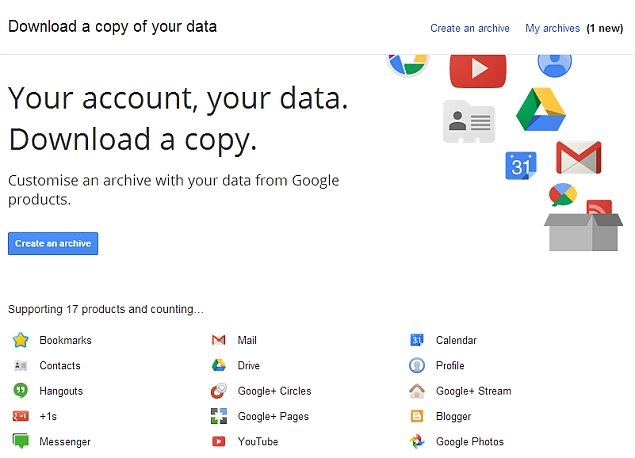
Google has a tool called Takeout which lets you download all your account data. It supports 17 products at the moment, including Gmail, YouTube, Hangouts and Google+. Downloading your data is pretty straightforward, just follow these steps.
1. Go to Google Takeout > click Create an archive.
2. This will open a page where you can select the services from which you want to download your data. By default all services are selected, so uncheck what you don't want. You can also select formats in which you want your data by clicking the Edit button next to each service. For instance, you can select whether you want contacts in vCard or HTML format.
3. Once you are done with the selection, click the red Create Archive button at the top.
4. Now Google will start creating an archive of your data and will email you when it is ready. This may take a lot of time, so be patient. When it's done, your data will be available in a zip file.

Also Read How to Enable Offline Mode in Google Chrome to Work Offline?

Download_Google_data.jpg

Twitter

Downloading Twitter data is a simple process. Twitter will take some time to create an archive of all your tweets, so don't expect instant results. Follow these steps for an offline archive of all your tweets.
1. Go to Twitter settings.
2. Scroll down to the bottom of the page and click Request your archive.
3. Twitter will mail you a link to a zip file when the archive is ready. Your archive is available in three formats - HTML, json and csv.
Download_Twitter_data.jpg


Also Read How to Increase Browser Cache memory in Chrome, Internet Explorer and Firefox?

Source: gadgets.ndtv.com

NOTE: Feel Free To Comment....
Unknown  /  at  18:51  /  1 comment

Download_Social_Media_Flickr.jpg

Also Read How to Use Gmail Offline on Google Chrome?How to Use Gmail Offline on Google Chrome?

If your social media profiles contain countless priceless memories that you aren't ready to part with, then you might want to store a copy offline. The world's most popular social networks let you download all your data, which might also be useful if you're planning to delete your profiles. Downloading these profiles can take a lot of time, depending on how much you've shared, since you may have saved many thousands of photos, so make sure you have some free time when you start this process. With that said, here's how you can go about it.

Facebook

The world's most popular social network - Facebook - lets you download your posts, photos and videos you've shared, your messages, chat conversations and information from the About section of your profile. You can download the data easily, but the option is not easy to find. Here's how you can find it.
2. The last option, under Language, is "Download a copy of your Facebook data." This is written in small font size and it's hard to tell that only "Download a copy" in that sentence is actually a link. Click it.
3. In the next page, click Start My Archive > click Start My Archive again in the pop-up > enter your password > click Submit.
4. Facebook will send you an email with a link to a zip file, which you can download and view all your data offline. The data is in an HTML file, which means you can open it in any browser.
Download_Facebook_data.jpg

Google

Google has a tool called Takeout which lets you download all your account data. It supports 17 products at the moment, including Gmail, YouTube, Hangouts and Google+. Downloading your data is pretty straightforward, just follow these steps.
1. Go to Google Takeout > click Create an archive.
2. This will open a page where you can select the services from which you want to download your data. By default all services are selected, so uncheck what you don't want. You can also select formats in which you want your data by clicking the Edit button next to each service. For instance, you can select whether you want contacts in vCard or HTML format.
3. Once you are done with the selection, click the red Create Archive button at the top.
4. Now Google will start creating an archive of your data and will email you when it is ready. This may take a lot of time, so be patient. When it's done, your data will be available in a zip file.

Also Read How to Enable Offline Mode in Google Chrome to Work Offline?

Download_Google_data.jpg

Twitter

Downloading Twitter data is a simple process. Twitter will take some time to create an archive of all your tweets, so don't expect instant results. Follow these steps for an offline archive of all your tweets.
1. Go to Twitter settings.
2. Scroll down to the bottom of the page and click Request your archive.
3. Twitter will mail you a link to a zip file when the archive is ready. Your archive is available in three formats - HTML, json and csv.
Download_Twitter_data.jpg


Also Read How to Increase Browser Cache memory in Chrome, Internet Explorer and Firefox?

Source: gadgets.ndtv.com

NOTE: Feel Free To Comment....

Posted in: , , Read Complete Article»

Friday, 13 June 2014

Chrome Extension to Post Audio Comments and Voice Messages to Facebook


Facebook is the most popular social networking site and used by millions of users daily around the world. On Facebook, you can update status, share contents, and upload pictures and videos, but can you also post voice comments and messages on Facebook? Well, that’s possible only if you are a Google Chrome user.

Also Read Guide to Get Windows 8 System Recovery Option – Recovery Environment

Chrome store has an extension called Talk and Comment and as the name indicates, it helps you in posting voice comments and messages to Facebook. You can easily install and setup this extension from chrome store. Once done, you can continue posting audio comments and voice messages to Facebook.
Visit Chrome store, click on add and click install. Now Talk and comment will ask your permission to use your system microphone device, click on allow to give permission. Now whenever you will open your Facebook account you will see a mic icon beside comment box. Click and hold that icon until it turns red. Now record your voice comment and leave the button to upload it. Follow these steps for the same.

How to Post Audio Comments and Voice Messages to Facebook

Step 1: Install Talk and Comment Extension from Chrome Store
Step 2:  Click on, Free and then Click on Add.
talk-and-comment-allow
Step 3: Once installed, click on Allow

Also Read How to Watch Fifa World Cup 2014 Live on Your PC, Smartphone or Tablet

talk-and-comment-allow
Step 4: Now login to Facebook          
Step 5: Click and hold on Mic icon beside comment box until it turns red
talk-and-comment-mic-buttonStep 6: Record your message and leave Mic icon to upload the message
talk-and-comment-recording
Step 7: Once uploaded, you will receive a link for your voice comment.

Also Read How to Clean Facebook, Twitter, and Other Social Websites

talk-and-comment-link
Step 8: Just hit enter to post it as audio comment.
Step 9: You can hear the comment by clicking on play button.
talk-and-comment-play
Everyone (according to your privacy setting) can hear your comment. If they have Talk and Comment installed then they will see a playable button else, they will see a link to your comment opening in new window with a play button. Now enjoy this little fun trick and share this article with your friends.


Also Read How to Get – Use Cortana on Windows Phone 8.1 Outside US?

NOTE: Feel Free To Comment....
Unknown  /  at  16:03  /  No comments


Facebook is the most popular social networking site and used by millions of users daily around the world. On Facebook, you can update status, share contents, and upload pictures and videos, but can you also post voice comments and messages on Facebook? Well, that’s possible only if you are a Google Chrome user.

Also Read Guide to Get Windows 8 System Recovery Option – Recovery Environment

Chrome store has an extension called Talk and Comment and as the name indicates, it helps you in posting voice comments and messages to Facebook. You can easily install and setup this extension from chrome store. Once done, you can continue posting audio comments and voice messages to Facebook.
Visit Chrome store, click on add and click install. Now Talk and comment will ask your permission to use your system microphone device, click on allow to give permission. Now whenever you will open your Facebook account you will see a mic icon beside comment box. Click and hold that icon until it turns red. Now record your voice comment and leave the button to upload it. Follow these steps for the same.

How to Post Audio Comments and Voice Messages to Facebook

Step 1: Install Talk and Comment Extension from Chrome Store
Step 2:  Click on, Free and then Click on Add.
talk-and-comment-allow
Step 3: Once installed, click on Allow

Also Read How to Watch Fifa World Cup 2014 Live on Your PC, Smartphone or Tablet

talk-and-comment-allow
Step 4: Now login to Facebook          
Step 5: Click and hold on Mic icon beside comment box until it turns red
talk-and-comment-mic-buttonStep 6: Record your message and leave Mic icon to upload the message
talk-and-comment-recording
Step 7: Once uploaded, you will receive a link for your voice comment.

Also Read How to Clean Facebook, Twitter, and Other Social Websites

talk-and-comment-link
Step 8: Just hit enter to post it as audio comment.
Step 9: You can hear the comment by clicking on play button.
talk-and-comment-play
Everyone (according to your privacy setting) can hear your comment. If they have Talk and Comment installed then they will see a playable button else, they will see a link to your comment opening in new window with a play button. Now enjoy this little fun trick and share this article with your friends.


Also Read How to Get – Use Cortana on Windows Phone 8.1 Outside US?

NOTE: Feel Free To Comment....

Posted in: , , , Read Complete Article»

Saturday, 7 June 2014

How to Clean Facebook, Twitter, and Other Social Websites

news_feed_like_baiting_screenshot_changes.jpg

Also Read How to Watch – Play YouTube Videos on VLC Player

Have your social feeds become too messy? Is all the clutter taking up too much screen space and you can't enjoy social networks anymore? We've found some great Google Chrome extensions to help you eliminate the clutter and focus on the content you want to see.

Facebook
Facebook can be one of the most annoying websites on the Internet, if you judge by the amount of spammy notifications and clutter distracting you from the things your friends share. Although Facebook has taken several measures to eliminate spam from your News Feed, you can remove all the things you don't need using a Chrome extension called FB Purity. After installing FB Purity, login to Facebook. Then follow these steps:
1) Click the FBP button on the right side of Facebook's search bar. This will show you all the options in FB Purity.
2) You can tick mark options by clicking on the button next to them, to enable or disable features. Check the following options for a basic clean-up: Game + App Stories, People You May Know, Gifts, Trending Topics, News Ticker Bar, and Sort Feed : Most Recent. Now click Save and Close at the bottom to apply these changes.
3) There are several advanced options on the FB Purity settings page, such as hiding all sidebar links, or blocking chat, or change fonts and colours. Each is explained in a tooltip, which you can see by hovering the mouse pointer over the options.
FB_Purity.jpg
Twitter

Also Read How to Turn Off Screen Display using Shortcut on Windows

Twitter is a fairly clean website when compared to most social networks, but the people you follow can make your Timeline a mess. For example, whenever there is a contest on Twitter or when there is a major sporting event going on, you may not want to see all the tweets on your Timeline. To quickly clean that up, install Larry Filter. Now log in to Twitter and follow these steps:
1) Click the Twitter bird icon on the top right of Chrome browser. Here you will see a box where you can add usernames or hashtags that you want to hide from your Timeline.
2) Type the hashtag or username in the form on the right and click Add. A drop-down menu below lets you select if you want to hide those tweets entirely or reduce their opacity by 75%. Either method works well and makes your timeline look a lot cleaner.
Larry_filter_635.jpg
Google+
If you use Google+, try the Google+ Optimizer extension to clear all the clutter on Google's social network. Install it and go through these steps.
1) Right-click the orange badge-like icon in the address bar and click Options.
2) Click the Filter tab and hover your mouse pointer over the thumbnails on the left to see what each one does. Here you can filter out all the "ABC +1'd this" posts, apart from YouTube comments, community invites, hashtags, people you may know, etc. Select what you need and enjoy a clean feed.
3) Our suggestion is to go to the Status-Filter header on this page, and click all three - community invites, You might know..., and birthday filter. Under the Content-Filter header, click +1 filter and YouTube filter. These options should get rid of most of the unwanted elements from your Google+ stream. Advanced options include filtering posts by hashtag or a keyword of your choice.
Gplus_635.jpg
Unfortunately, there are no good Google+ addons for Firefox. However, you can get rid of the white space on Google+ using Whitespace Remover for Google Plus.
YouTube

Also Read How to Delete Or Unintall Pre-installed Apps on Windows 8?

The world's most popular video sharing platform may not be a full-fledged social network, but it has a huge community of commenters and comes with its share of annoyances. YouTube's several related videos on the side make it difficult to focus on the video you are watching, given that most uploaders are trying their best to grab eyeballs by uploading misleading thumbnails. To hide all the unwanted content, you can try a simple extension called Turn Off the Lights. As the name suggests, the extension makes the rest of the browser window dark, so that none of it distracts you. Here's how to use it.
1) After installing the extension, head to YouTube and play any video.
2) Now click the lamp icon in the address bar. This will dim everything on the screen except the video. Sounds simple right? There's a lot more to this extension than that.
3) Right-click the lamp icon and click Options. As you will see, there are more than enough YouTube tweaks here to help you get a clean layout. On the left side, you'll see tabs called Basics, Advanced Options, etc.
4) Under Basics, move the Opacity slider to 100. Now check the box next to "Automatically dim the background when you click the play button" and "Automatically set the YouTube player to the larger size". These tweaks should be enough for most people, but you can go through all the options to find what suits your needs.
Turn_lights_635.jpg
Bonus: Gmail
While Gmail isn't really a social network, we decided to include it in this article due to its popularity. Gmail is an awesome email service, but that doesn't mean it that it is perfect. Over the years, Google has added several elements that make it hard to focus on the stuff you're looking for - email.
If you'd like a cleaner Gmail layout, install Gmelius on Google Chrome. This extension allows you to hide unnecessary elements such as the top bar linking to other Google sites, the chat box, and Google+ activity, among other things.
To clean up your social feed, install Gmelius and log in to your Gmail account. Follow these steps for a cleaner look.

Also Read How To Deleted Locked Or Currupted Files Using Unlocker 1.9.2?

1) Click the "G" icon to the right of the address bar on Chrome. This will take you to Gmelius settings.
2) This page lists all the different settings such as the people widget, chat and calendars, which you can turn on and off.
3) Here are the changes we suggest. Make sure that there is a tick-mark next to these options: Footer, People Widget (only if you don't use Google Voice), Remove Google+ Activity, Colourize navigation icons, and Google icons. This will help you focus on just email. Once you're done, click on Save Changes at the bottom of the page.
4) If you're not sure which ones are best, Gmelius has some suggestions too. The settings page has small buttons next to each of its tweaking options, labelled Power User, Popular, Design, Zen Mode, etc. Selecting the ones marked Zen is a quick way to help focus on the best ones for mail, or you could look at the ones marked popular, to see what other people are selecting.
Gmelius_635.jpg
Gmelius is also available for Firefox, but you'll have to install the extension from their homepage as the developer will soon deprecate the version available on Mozilla's addon site.
These extensions should have helped you clean all your social feeds quickly. In case you use any other extensions, please leave a comment to let us know.


Also Read How to Record/Capture your Desktop Screen and Make a Video using VLC Media Player

NOTE: Feel Free To Comment....
Unknown  /  at  15:51  /  No comments

news_feed_like_baiting_screenshot_changes.jpg

Also Read How to Watch – Play YouTube Videos on VLC Player

Have your social feeds become too messy? Is all the clutter taking up too much screen space and you can't enjoy social networks anymore? We've found some great Google Chrome extensions to help you eliminate the clutter and focus on the content you want to see.

Facebook
Facebook can be one of the most annoying websites on the Internet, if you judge by the amount of spammy notifications and clutter distracting you from the things your friends share. Although Facebook has taken several measures to eliminate spam from your News Feed, you can remove all the things you don't need using a Chrome extension called FB Purity. After installing FB Purity, login to Facebook. Then follow these steps:
1) Click the FBP button on the right side of Facebook's search bar. This will show you all the options in FB Purity.
2) You can tick mark options by clicking on the button next to them, to enable or disable features. Check the following options for a basic clean-up: Game + App Stories, People You May Know, Gifts, Trending Topics, News Ticker Bar, and Sort Feed : Most Recent. Now click Save and Close at the bottom to apply these changes.
3) There are several advanced options on the FB Purity settings page, such as hiding all sidebar links, or blocking chat, or change fonts and colours. Each is explained in a tooltip, which you can see by hovering the mouse pointer over the options.
FB_Purity.jpg
Twitter

Also Read How to Turn Off Screen Display using Shortcut on Windows

Twitter is a fairly clean website when compared to most social networks, but the people you follow can make your Timeline a mess. For example, whenever there is a contest on Twitter or when there is a major sporting event going on, you may not want to see all the tweets on your Timeline. To quickly clean that up, install Larry Filter. Now log in to Twitter and follow these steps:
1) Click the Twitter bird icon on the top right of Chrome browser. Here you will see a box where you can add usernames or hashtags that you want to hide from your Timeline.
2) Type the hashtag or username in the form on the right and click Add. A drop-down menu below lets you select if you want to hide those tweets entirely or reduce their opacity by 75%. Either method works well and makes your timeline look a lot cleaner.
Larry_filter_635.jpg
Google+
If you use Google+, try the Google+ Optimizer extension to clear all the clutter on Google's social network. Install it and go through these steps.
1) Right-click the orange badge-like icon in the address bar and click Options.
2) Click the Filter tab and hover your mouse pointer over the thumbnails on the left to see what each one does. Here you can filter out all the "ABC +1'd this" posts, apart from YouTube comments, community invites, hashtags, people you may know, etc. Select what you need and enjoy a clean feed.
3) Our suggestion is to go to the Status-Filter header on this page, and click all three - community invites, You might know..., and birthday filter. Under the Content-Filter header, click +1 filter and YouTube filter. These options should get rid of most of the unwanted elements from your Google+ stream. Advanced options include filtering posts by hashtag or a keyword of your choice.
Gplus_635.jpg
Unfortunately, there are no good Google+ addons for Firefox. However, you can get rid of the white space on Google+ using Whitespace Remover for Google Plus.
YouTube

Also Read How to Delete Or Unintall Pre-installed Apps on Windows 8?

The world's most popular video sharing platform may not be a full-fledged social network, but it has a huge community of commenters and comes with its share of annoyances. YouTube's several related videos on the side make it difficult to focus on the video you are watching, given that most uploaders are trying their best to grab eyeballs by uploading misleading thumbnails. To hide all the unwanted content, you can try a simple extension called Turn Off the Lights. As the name suggests, the extension makes the rest of the browser window dark, so that none of it distracts you. Here's how to use it.
1) After installing the extension, head to YouTube and play any video.
2) Now click the lamp icon in the address bar. This will dim everything on the screen except the video. Sounds simple right? There's a lot more to this extension than that.
3) Right-click the lamp icon and click Options. As you will see, there are more than enough YouTube tweaks here to help you get a clean layout. On the left side, you'll see tabs called Basics, Advanced Options, etc.
4) Under Basics, move the Opacity slider to 100. Now check the box next to "Automatically dim the background when you click the play button" and "Automatically set the YouTube player to the larger size". These tweaks should be enough for most people, but you can go through all the options to find what suits your needs.
Turn_lights_635.jpg
Bonus: Gmail
While Gmail isn't really a social network, we decided to include it in this article due to its popularity. Gmail is an awesome email service, but that doesn't mean it that it is perfect. Over the years, Google has added several elements that make it hard to focus on the stuff you're looking for - email.
If you'd like a cleaner Gmail layout, install Gmelius on Google Chrome. This extension allows you to hide unnecessary elements such as the top bar linking to other Google sites, the chat box, and Google+ activity, among other things.
To clean up your social feed, install Gmelius and log in to your Gmail account. Follow these steps for a cleaner look.

Also Read How To Deleted Locked Or Currupted Files Using Unlocker 1.9.2?

1) Click the "G" icon to the right of the address bar on Chrome. This will take you to Gmelius settings.
2) This page lists all the different settings such as the people widget, chat and calendars, which you can turn on and off.
3) Here are the changes we suggest. Make sure that there is a tick-mark next to these options: Footer, People Widget (only if you don't use Google Voice), Remove Google+ Activity, Colourize navigation icons, and Google icons. This will help you focus on just email. Once you're done, click on Save Changes at the bottom of the page.
4) If you're not sure which ones are best, Gmelius has some suggestions too. The settings page has small buttons next to each of its tweaking options, labelled Power User, Popular, Design, Zen Mode, etc. Selecting the ones marked Zen is a quick way to help focus on the best ones for mail, or you could look at the ones marked popular, to see what other people are selecting.
Gmelius_635.jpg
Gmelius is also available for Firefox, but you'll have to install the extension from their homepage as the developer will soon deprecate the version available on Mozilla's addon site.
These extensions should have helped you clean all your social feeds quickly. In case you use any other extensions, please leave a comment to let us know.


Also Read How to Record/Capture your Desktop Screen and Make a Video using VLC Media Player

NOTE: Feel Free To Comment....

Posted in: , , Read Complete Article»

Saturday, 3 May 2014

Facebook introduces Anonymous Login, mobile ad network


mark_zuckerberg_facebook_mobile_keynote_ap.jpg


Facebook moved Wednesday to bolster the trust of its more than one billion users by providing new controls on how much information is shared on the world's leading social network.
In a major shift away from the notion long preached by Facebook co-founder and chief Mark Zuckerberg of having a single known identity online, people will be able to use applications anonymously at Facebook.
The social network also provided a streamlined way for people to control which data applications can access and began letting people rein in what friends can do with shared posts at Facebook.
Zuckerberg announced the changes, along with moves to make Facebook a more stable platform for applications, at the social network's sold-out f8 developers conference.
"By giving people more power and control, they are going to trust all the apps we build more and over time use them more," Zuckerberg told an audience of about 1,700 conference attendees.
"That is positive for everyone."
In a statement Facebook explained its new "Anonymous Login" as an easy way for people to try an app without sharing personal information from Facebook..
"People tell us they're sometimes worried about sharing information with apps and want more choice and control over what personal information apps receive," the company said. "Today's announcements put power and control squarely in people's hands."
People are scared
In coming weeks, Facebook will also roll out a redesigned dashboard to give users a simple way to manage or remove third-party applications linked to their profiles at the social network.
"This is really big from a user standpoint," JibJab chief executive Gregg Spiridellis said of what he heard during the keynote presentation that opened the one-day Facebook conference.
"I think they are seeing people are scared. They realize that long-term, they need to be trusted."
A JibJab application that can synch with Facebook lets people personalize digital greeting cards with images of themselves or friends.
In a major move that promises to help application makers bring in more money and to further challenge Google for online marketing revenue, Facebook is expanding a test of putting its ad-targeting prowess to work for developers.
A Facebook Audience Network will what people share publicly about themselves and their interests to pinpoint marketing messages in third-party apps linked to Facebook on desktop computers or mobile devices.
Better targeted ads promise to be more effective and, by extension, more attractive to marketers as well as app makers.
"These guys are so smart," Spiridellis said of the Facebook team. "Every publisher is going to switch to Audience."
Hacker way
Facebook revived its popular developers conference after a two-year hiatus and promised that the event will take place annually for the foreseeable future.
Zuckerberg said the overarching themes at f8 were ways to help developers "build, grow, and monetize" applications that synch with Facebook.
While Zuckerberg still proudly endorses a "hacker way" of creatively bending software in innovative directions, he promised developers that the Facebook platform on which they rely will deliver "stability and consistency."
"My goal is building a culture of loving the people we serve that is as strong as hacking it," Zuckerberg said as he wound up his presentation on a personal note.

Also Read New technology could allow batteries to last as long as 50 years

He described being in a personally reflective period triggered by Facebook turning 10 years old in February and him marking his 30th birthday in just a few weeks.
It has also been 10 years since he first met his wife, Priscilla Chan, he added.
"It's a time to reflect in life, family, philanthropy and what is important in the 10 years ahead," Zuckerberg said.


NOTE: Feel Free To Comment....
Unknown  /  at  18:33  /  No comments


mark_zuckerberg_facebook_mobile_keynote_ap.jpg


Facebook moved Wednesday to bolster the trust of its more than one billion users by providing new controls on how much information is shared on the world's leading social network.
In a major shift away from the notion long preached by Facebook co-founder and chief Mark Zuckerberg of having a single known identity online, people will be able to use applications anonymously at Facebook.
The social network also provided a streamlined way for people to control which data applications can access and began letting people rein in what friends can do with shared posts at Facebook.
Zuckerberg announced the changes, along with moves to make Facebook a more stable platform for applications, at the social network's sold-out f8 developers conference.
"By giving people more power and control, they are going to trust all the apps we build more and over time use them more," Zuckerberg told an audience of about 1,700 conference attendees.
"That is positive for everyone."
In a statement Facebook explained its new "Anonymous Login" as an easy way for people to try an app without sharing personal information from Facebook..
"People tell us they're sometimes worried about sharing information with apps and want more choice and control over what personal information apps receive," the company said. "Today's announcements put power and control squarely in people's hands."
People are scared
In coming weeks, Facebook will also roll out a redesigned dashboard to give users a simple way to manage or remove third-party applications linked to their profiles at the social network.
"This is really big from a user standpoint," JibJab chief executive Gregg Spiridellis said of what he heard during the keynote presentation that opened the one-day Facebook conference.
"I think they are seeing people are scared. They realize that long-term, they need to be trusted."
A JibJab application that can synch with Facebook lets people personalize digital greeting cards with images of themselves or friends.
In a major move that promises to help application makers bring in more money and to further challenge Google for online marketing revenue, Facebook is expanding a test of putting its ad-targeting prowess to work for developers.
A Facebook Audience Network will what people share publicly about themselves and their interests to pinpoint marketing messages in third-party apps linked to Facebook on desktop computers or mobile devices.
Better targeted ads promise to be more effective and, by extension, more attractive to marketers as well as app makers.
"These guys are so smart," Spiridellis said of the Facebook team. "Every publisher is going to switch to Audience."
Hacker way
Facebook revived its popular developers conference after a two-year hiatus and promised that the event will take place annually for the foreseeable future.
Zuckerberg said the overarching themes at f8 were ways to help developers "build, grow, and monetize" applications that synch with Facebook.
While Zuckerberg still proudly endorses a "hacker way" of creatively bending software in innovative directions, he promised developers that the Facebook platform on which they rely will deliver "stability and consistency."
"My goal is building a culture of loving the people we serve that is as strong as hacking it," Zuckerberg said as he wound up his presentation on a personal note.

Also Read New technology could allow batteries to last as long as 50 years

He described being in a personally reflective period triggered by Facebook turning 10 years old in February and him marking his 30th birthday in just a few weeks.
It has also been 10 years since he first met his wife, Priscilla Chan, he added.
"It's a time to reflect in life, family, philanthropy and what is important in the 10 years ahead," Zuckerberg said.


NOTE: Feel Free To Comment....

Posted in: , Read Complete Article»

Friday, 25 April 2014

5 Essential Things You Should Know About Facebook Nearby Friends


Nearby Friends is a Facebook feature that will inform you about your friend’s location when they are nearby. You can also use the feature to track your friend’s location in real time. This feature is available in the Facebook mobile app, where once enabled, you will occasionally be notified when your friends are in the proximity range of your current location. That way, you can quickly meet up to grab a bite together, all thanks to Facebook.

Also Read Basic Disk and Dynamic Disk Difference

Facebook Nearby Friends feature
Released on April 17, 2014 and currently rolling out in stages, the feature is probably not available to you yet, which makes it perfect for us to have a quick discussion about 5 essential things you should know about Facebook Nearby Friends.

1. How To Use Nearby Friends

First off, for Nearby Friends to work, you will need to share your location with your friends and have them do the same to you. To enable Nearby Friends (when you get it), go to the More tab within your Facebook application (iOS or Android) and look for Nearby Friends in the menu to turn it on.
Any of your friends that has opted in for this feature by turning it on will be able to see you in the list, if the both of you share your respective locations. The list will also show the distance between you and your friend, their last logged location and the current neighbourhood they’re in.

Sharing Precise Location At Stipulated Time

If you’re not okay with sharing your location all the time, but for perhaps a gathering or a meet-up you’d want to, Nearby Friends has an option for you to set the time you are trackable via the feature. You can share the precise location of your whereabouts to your friend(s) for a period of time which you can set.
That means you can look for your friends’ precise location on a map and be able to tell when they will arrive at the agreed meeting point, or if they aren’t on the way yet (even if they said they are).
Share Precise Location And Know When Your Friends Are Traveling

2. Use Of Your Data

There is no such thing as a free lunch and yes, using Nearby Friends will eventually get you submitted to some advertising (says Facebook). Basically, there is a plan to eventually use the data gathered by your location history for marketing purposes.
The data you submit to use Nearby Friends can be easily harnessed by Facebook to share with advertisers who will probably forward targeted ads to you – which isn’t so bad. For example, you will probably receive an online voucher, if you and a friend are lunching together at a certain restaurant that has a special promotion.
What's In It For Facebook?
Then again, this isn’t news because every other Facebook features that requires your location even before Nearby Friends, can be used the same way.
Also Read Handy Hints For Windows 8.1

3. Facebook Features That Use Location Info

Even before the launch of Nearby Friends, there were other Facebook features that use or rely on your location to work. Those features are known as Facebook Messenger, Nearby Places, Check-in and Status update. If you use Facebook Messenger and share a status update via mobile, know that your location info is turned on by default.
Facebook Features That Uses Location
So, technically, Facebook already knows your location as exposed by you from the features listed above. It just can’t track you most or all of the time, until now. If however, you are fine with this, Nearby Friends is probably a great feature to help you reconnect more easily with friends.

4. There Are Other Better Apps

Note that there are already a few other services that offer similar, or even better, features that bank on location sharing. Just to name a few there is Circle, an app you can use to find out what local events are happening around you and which of your friends are attending the events.
Then there’s Banjo, where you can get information about live events and breaking news on your favorite social network, sortable by location.
Connect brings all your social networks friends (not just the ones on Facebook) into one map. You get to see which friends are nearby, who is visiting from out-of-state, and your social address book is always up-to-date.
We recently also reviewed Firechat, an app that allows you to chat offline with peeps in your vicinity using Open Garden mesh networks, without an internet connection.
Other Similar Services
Note that if you are an Android user, you already have a feature very similar to Nearby Friends:Google Now Commute Sharing. Through Commute Sharing, you can let your friends or family know when you’re heading home from work. It works over the Google+ network where you can share your locations to those in your circles.
Once enabled, your location will be available in the form of Google Now cards when you’re at work, leaving from work and when you arrive home – every step of the way.

Also Read Want To Install Linux After The Death Of XP? Here’s How!

5. Yes, We Need To Talk About Privacy

Nearby Friends can only work if both you and your friend share each other’s location. The good news is you have the option to share your location to your Facebook list , just a group of friends or make it public to everyone.
But let’s face it, most people will probably share their location to everyone on their Facebook since it is a lot more convenient to do so.
Privacy: Are The Options Good Enough?
Overexposing your personal information to everyone may result in nothing, or it may come back and bite you one day. There are repercussions to oversharing that is unique to each individual so do use the feature with caution, rather than complain about how Facebook is invading your privacy or misappropriating your private data when something bad happens. The feature is optional, and at the end of the day, remember that you are in charge of your own privacy matters.

Conclusion

In comparison to other similar services, one clear advantage Facebook Nearby Friends has is that most of your friends are probably already on Facebook. One possible disadvantage is, this feature could probably have an effect on your battery life. However, if you want to bring your online social life back to real life, this is probably one of the best Facebook feature that could turn that into reality.


Also Read 5 Awesome Music Desktop Gadgets for Vista and Windows 7

NOTE: Feel Free To Comment.....
Unknown  /  at  14:03  /  No comments


Nearby Friends is a Facebook feature that will inform you about your friend’s location when they are nearby. You can also use the feature to track your friend’s location in real time. This feature is available in the Facebook mobile app, where once enabled, you will occasionally be notified when your friends are in the proximity range of your current location. That way, you can quickly meet up to grab a bite together, all thanks to Facebook.

Also Read Basic Disk and Dynamic Disk Difference

Facebook Nearby Friends feature
Released on April 17, 2014 and currently rolling out in stages, the feature is probably not available to you yet, which makes it perfect for us to have a quick discussion about 5 essential things you should know about Facebook Nearby Friends.

1. How To Use Nearby Friends

First off, for Nearby Friends to work, you will need to share your location with your friends and have them do the same to you. To enable Nearby Friends (when you get it), go to the More tab within your Facebook application (iOS or Android) and look for Nearby Friends in the menu to turn it on.
Any of your friends that has opted in for this feature by turning it on will be able to see you in the list, if the both of you share your respective locations. The list will also show the distance between you and your friend, their last logged location and the current neighbourhood they’re in.

Sharing Precise Location At Stipulated Time

If you’re not okay with sharing your location all the time, but for perhaps a gathering or a meet-up you’d want to, Nearby Friends has an option for you to set the time you are trackable via the feature. You can share the precise location of your whereabouts to your friend(s) for a period of time which you can set.
That means you can look for your friends’ precise location on a map and be able to tell when they will arrive at the agreed meeting point, or if they aren’t on the way yet (even if they said they are).
Share Precise Location And Know When Your Friends Are Traveling

2. Use Of Your Data

There is no such thing as a free lunch and yes, using Nearby Friends will eventually get you submitted to some advertising (says Facebook). Basically, there is a plan to eventually use the data gathered by your location history for marketing purposes.
The data you submit to use Nearby Friends can be easily harnessed by Facebook to share with advertisers who will probably forward targeted ads to you – which isn’t so bad. For example, you will probably receive an online voucher, if you and a friend are lunching together at a certain restaurant that has a special promotion.
What's In It For Facebook?
Then again, this isn’t news because every other Facebook features that requires your location even before Nearby Friends, can be used the same way.
Also Read Handy Hints For Windows 8.1

3. Facebook Features That Use Location Info

Even before the launch of Nearby Friends, there were other Facebook features that use or rely on your location to work. Those features are known as Facebook Messenger, Nearby Places, Check-in and Status update. If you use Facebook Messenger and share a status update via mobile, know that your location info is turned on by default.
Facebook Features That Uses Location
So, technically, Facebook already knows your location as exposed by you from the features listed above. It just can’t track you most or all of the time, until now. If however, you are fine with this, Nearby Friends is probably a great feature to help you reconnect more easily with friends.

4. There Are Other Better Apps

Note that there are already a few other services that offer similar, or even better, features that bank on location sharing. Just to name a few there is Circle, an app you can use to find out what local events are happening around you and which of your friends are attending the events.
Then there’s Banjo, where you can get information about live events and breaking news on your favorite social network, sortable by location.
Connect brings all your social networks friends (not just the ones on Facebook) into one map. You get to see which friends are nearby, who is visiting from out-of-state, and your social address book is always up-to-date.
We recently also reviewed Firechat, an app that allows you to chat offline with peeps in your vicinity using Open Garden mesh networks, without an internet connection.
Other Similar Services
Note that if you are an Android user, you already have a feature very similar to Nearby Friends:Google Now Commute Sharing. Through Commute Sharing, you can let your friends or family know when you’re heading home from work. It works over the Google+ network where you can share your locations to those in your circles.
Once enabled, your location will be available in the form of Google Now cards when you’re at work, leaving from work and when you arrive home – every step of the way.

Also Read Want To Install Linux After The Death Of XP? Here’s How!

5. Yes, We Need To Talk About Privacy

Nearby Friends can only work if both you and your friend share each other’s location. The good news is you have the option to share your location to your Facebook list , just a group of friends or make it public to everyone.
But let’s face it, most people will probably share their location to everyone on their Facebook since it is a lot more convenient to do so.
Privacy: Are The Options Good Enough?
Overexposing your personal information to everyone may result in nothing, or it may come back and bite you one day. There are repercussions to oversharing that is unique to each individual so do use the feature with caution, rather than complain about how Facebook is invading your privacy or misappropriating your private data when something bad happens. The feature is optional, and at the end of the day, remember that you are in charge of your own privacy matters.

Conclusion

In comparison to other similar services, one clear advantage Facebook Nearby Friends has is that most of your friends are probably already on Facebook. One possible disadvantage is, this feature could probably have an effect on your battery life. However, if you want to bring your online social life back to real life, this is probably one of the best Facebook feature that could turn that into reality.


Also Read 5 Awesome Music Desktop Gadgets for Vista and Windows 7

NOTE: Feel Free To Comment.....

Posted in: , , Read Complete Article»

About

This blog belong to all our youngster friendz, who believe in sharing their knowledge with others and want to try to hackin', crackin' , full version applications at free of cost.
you will found here valuable stuffs.

Labels

adf.ly blocked (1) android (109) Android and PC (19) android games (11) android news (3) android tricks (43) Antivirus (11) Anvsoft (1) apple (40) asha phones (1) avast (1) avast pro antivirus 8 2013 (1) avg (1) AVG pc tuneup 2013 full version (1) avira (1) blackberry (1) blogspot (2) body_language (1) bootable usb (1) Browsers (16) c cleaner pro + business (1) Cheatbook 2013 (1) Chetan Bhagat (1) compressor (1) crac (1) Crack (1) crack + keygen (2) cyberlink power2go full version (1) daemon tools 5.2 full version (1) daemon tools patch (1) defender (2) dictionary (1) direct link (1) DivX Pro 7 (1) Ebook (2) eset (1) etc (1) facebook (16) Firewall (2) free recharge tricks (1) free sms (1) FRUIT NINJA for windows full version (1) full version (8) Full Version MS Office 13 (1) GTA Sandreas (1) hack (4) hack pc (3) hacking using keylogger (1) hardware (1) hiDownload platinum 8 (1) how to (6) how to install .net (1) HTML (1) idm (1) idm crack (1) IDM full version (1) image editor (2) install .net in windows 8 (1) internet tricks (37) iPhone 5c (2) job (1) k j activator (1) kaspersky (2) keygen (2) leaked images (1) license key (1) manual updates (1) mediafire (1) MEDIAFIRE DOWNLOAD (2) mediafire link (2) mobiles (42) music player (1) nfs most wanted (1) Office 13 Activator (1) official site update (1) offline updates (1) patch (4) PC (3) pc customize (1) PC Drivers (2) pc games (15) pc games cheats (11) PC Software (152) PC tricks (146) PdaNET 3.50 (1) PDF (3) phone specifications (43) pic viewer (3) power iso 5.6 (1) premium zbigz account (1) problem with .net in windows 8 (1) review (11) reviews (2) Revolution 2020 PDF (1) science (2) sharebeast download (6) sharebeast link (2) symbian mobiles (2) tech knowledge (33) Tech News (343) tech reviews (146) Torrent To IDM (1) Tune-Up 2014 Full Version (1) Ubuntu Mobiles (1) video player (13) video tutorial (1) Web design (1) window 8.1 tricks (12) windows 8 activator (1) Windows 8 USB Installer Maker (1) windows phones (16) winrar 5 full version (1)
Copyright © 2014 SimplyGet. WP Theme-junkie converted by Bloggertheme9
Blogger templates. Proudly Powered by Blogger.