Showing posts with label mobiles. Show all posts

Sunday, 28 September 2014

12 Things DuckDuckGo Can Do That Google Can't

DuckDuckGo_Logo.jpg
Search engines have evolved to make it easier to find the information you need without having to go through different websites. Google has the Knowledge Graph feature that shows a neat box with useful information above (or beside) search results. It can do cool things such as calculations, show flight information and even currency conversion.
Although these features are incredibly useful, Google Knowledge Graph has its shortcomings. The biggest problem is that results are not uniform. When we were digging through Knowledge Graph features to find cool things you didn't know you could do with Google, we noticed that the results were not always the same. When one person searched for Apple stocks, Google showed him regular search results, but when a colleague searched for the same term, he was shown current stock information along with a nice price versus time graph.
These limitations made us look for alternatives and we found one that impressed us with its utility - DuckDuckGo. DuckDuckGo is a privacy-focussed search engine. DuckDuckGo is a search engine that shows the same results for a search term to all its users. This is unlike Google, which filters search results based on the sites you have been visiting. It is also now possible to set DuckDuckGo as a default search engine in iOS 8 as well as OS X so you can get the instant search results just by typing your query into the Safari browser. Of course you can also use DuckDuckGo in Chrome or Firefox by visiting DuckDuckGo.com and clicking the Use in Chrome or Use in Firefox button.
Because it doesn't try to personalise results, DuckDuckGo's instant answers work for everyone and it has a great community of developers and users that are constantly adding new sources for answers. After using DuckDuckGo as our primary search engine for quite some time, we found that its instant answers are often as good as or better than Google's Knowledge Graph. Here are 12 amazing things DuckDuckGo can do that Google can't.
1. Social media bio
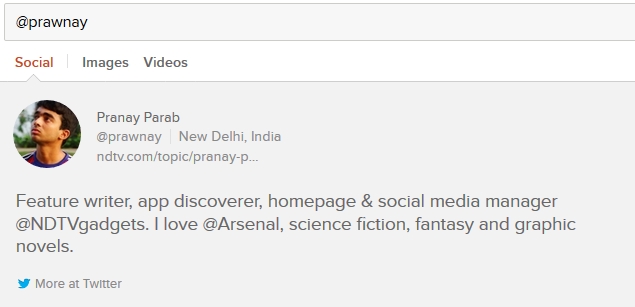
DuckDuckGo lets you see the social media profiles of people without leaving the search engine. The same thing works for Google+ and Gravatar as well. To look up a Twitter bio, you need to search for the handle. For Google+, type G+ and then the name of the user. For Gravatar, just type Gravatar, and then the username you want to look up.
Another cool feature that is related is letting you search inside other sites. With Google, you can use the site: modifier to search for results within a particular site, but then you still have to open the link to see the results. With DuckDuckGo, you can use the site's own search functions.
For example, if you want to search for someone's details on LinkedIn, you don't need to open the site. Just type "!linkedin" followed by the person's name, and you will see the LinkedIn search results page. You can do this with a large number of websites; !g lets you search with Google, !a is Amazon, !r is Reddit, just to name a few. You can see the full list by just typing ! in the DuckDuckGo search bar.
duckduckgo_twitter_bio.jpg
2. App store search, alternatives to apps

Also Read Full Specs Of Micromax Canvas Nitro

Search for any popular app on DuckDuckGo and you will find that it shows a carousel full of apps with similar names. Clicking on any one of the cards on the carousel will show you the price of the app, a description and links to the store. We found that this feature doesn't work with very obscure apps, but it can find most of the well-known ones.
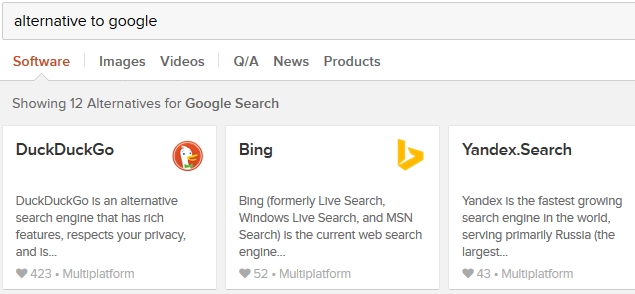
Another useful feature shows alternatives to apps in a neat carousel. Tired of MS Office? Just search for "Alternative to Word" and see the results for yourself. It also works for Web services, so you can even search for "Alternative to DuckDuckGo", if you like.
duckduckgo_alternativeto_1.jpg
3. Shorten and expand links
Want to find out which websites are at the end of shortened links such as http://bit.ly/1tYrmaB ? Open DuckDuckGo and search "expand http://bit.ly/1tYrmaB".
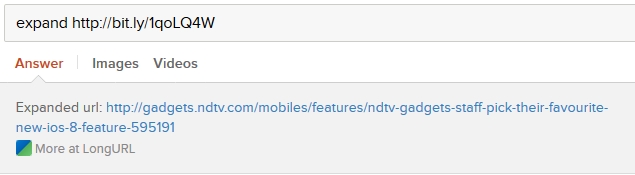
duckduckgo_expand.jpg
4. Generate passwords
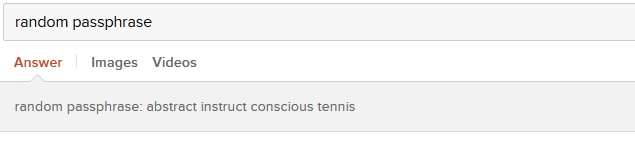
Can't think of a strong password? Just head to DuckDuckGo and search for "Password 20". You'll see a strong 20-character password. You can replace the number to change the number of characters in the password. If you find those random passwords hard to remember, you can make DuckDuckGo generate XKCD-style passwords. These passwords comprise four common words put together, which are easy to remember and hard to crack, and were first suggested in the popular Web comic XKCD. For these passwords, search "Random passphrase".
duckduckgo_passphrase.jpg
5. Quick stopwatch
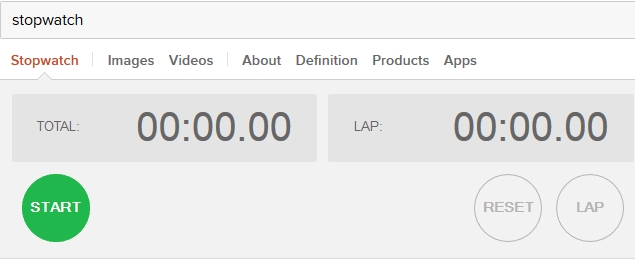
Both Google and DuckDuckGo let you create a quick timer (search for "timer") but DuckDuckGo also has a stopwatch. Simply search for "stopwatch" to use it.
duckduckgo_stopwatch.jpg
6. Change case and check number of characters
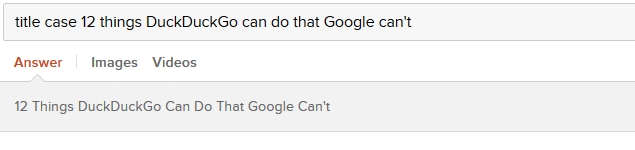
Want to change a sentence to Title Case, lowercase or UPPERCASE? Just add one of those three terms before your sentence and key it in on DuckDuckGo.
Another interesting feature is the number of characters. You can quickly check how many characters are in your search query by adding "chars" before or after the query. Try searching for "chars I really like this article" without the quotes and see the results.
duckduckgo_titlecase_1.jpg
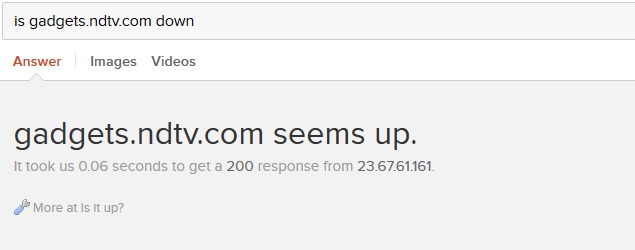
7. Checks whether websites are down
If you can't open a website, you might want to check if it is not opening anywhere or just on your computer. You can use websites such as isup.me to check this or you can simply search DuckDuckGo with the keywords.

Also Read Datawind to Launch Rs. 2,000 Android Phone With Free Lifetime Internet
duckduckgo_isitdown.jpg
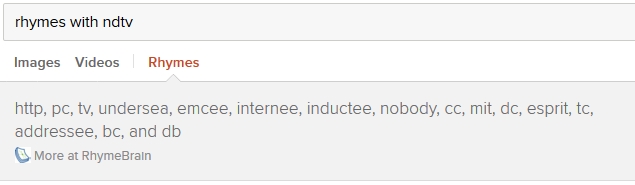
8. Does mime rhyme with time
You read that right. DuckDuckGo also has an instant answer that finds rhyming words. Search any word you can think of. You'll see an instant answer with rhyming words, from RhymeBrain.
duckduckgo_rhyme.jpg
9. Calendar
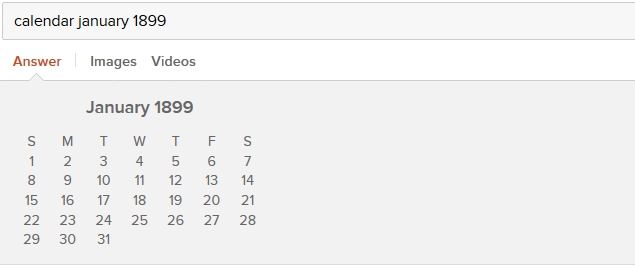
Google and DuckDuckGo can show you the current date and time. But DuckDuckGo goes one step further by supporting calendar as an instant answer. Search "calendar" to see one, with the current date highlighted. It can also show you the calendar for any month and year. Try searching for "calendar january 1899".
duckduckgo_calendar.jpg
10. Loan calculator
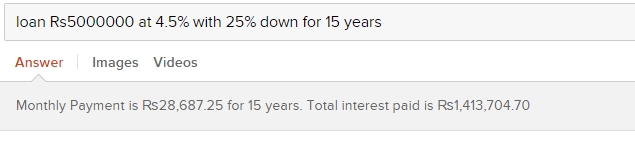
Another useful DuckDuckGo instant answer is a loan calculator. It's useful if you want to see how much your monthly installments will be and how much interest you'll be paying in total. The search query for this is a little hard to remember, like the terms and conditions for most loan agreements. It is "loan AMOUNT at INTEREST with PERCENT down for DURATION". All the uppercase words are what you need to key in - total amount, interest rate, down payment percentage and the duration of the loan. We tried "loan Rs 50,00,000 at 4.5% with 25% down for 15 years" to get the answer in the picture below.
duckduckgo_loan.jpg
11. Cool features for developers
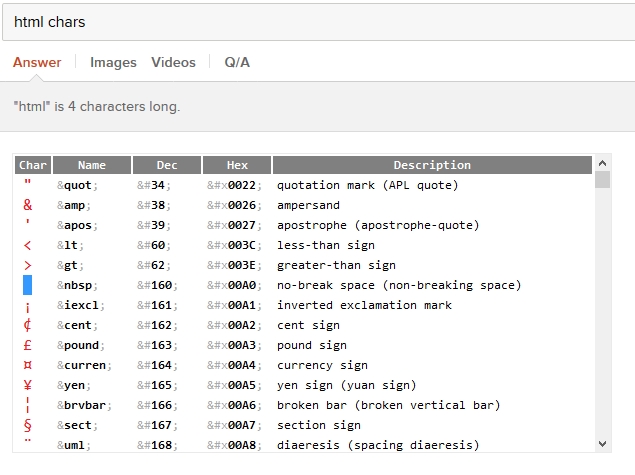
There are several instant answers that will be useful to software developers, but might be less important for the general public. Here's a quick list of what DuckDuckGo can do:
duckduckgo_html.jpg
12. Add instant answers to other search engines
If you like all these instant answers but don't want to leave your favourite search engine, just download the DuckDuckGo extension on Chrome, Safari or Firefox. Now whenever you search, you'll see DuckDuckGo's instant answers above search results in any search engine.
Bonus
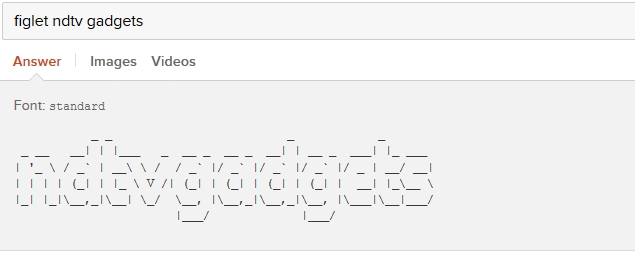
There are several other instant answers on DuckDuckGo that are quite cool, but not very useful. That's why these are included as a bonus in this article. Here's a quick list of some of the best we could find.
duckduckgo_ascii.jpg
These were the best instant answers we could find on DuckDuckGo and none of those are available on Google.


Source: http://gadgets.ndtv.com/

Also Read How to Download and Install iOS 8 on Your iPhone, iPad, or iPod Touch

NOTE: Feel Free To Comment....
Unknown  /  at  13:07  /  No comments

DuckDuckGo_Logo.jpg
Search engines have evolved to make it easier to find the information you need without having to go through different websites. Google has the Knowledge Graph feature that shows a neat box with useful information above (or beside) search results. It can do cool things such as calculations, show flight information and even currency conversion.
Although these features are incredibly useful, Google Knowledge Graph has its shortcomings. The biggest problem is that results are not uniform. When we were digging through Knowledge Graph features to find cool things you didn't know you could do with Google, we noticed that the results were not always the same. When one person searched for Apple stocks, Google showed him regular search results, but when a colleague searched for the same term, he was shown current stock information along with a nice price versus time graph.
These limitations made us look for alternatives and we found one that impressed us with its utility - DuckDuckGo. DuckDuckGo is a privacy-focussed search engine. DuckDuckGo is a search engine that shows the same results for a search term to all its users. This is unlike Google, which filters search results based on the sites you have been visiting. It is also now possible to set DuckDuckGo as a default search engine in iOS 8 as well as OS X so you can get the instant search results just by typing your query into the Safari browser. Of course you can also use DuckDuckGo in Chrome or Firefox by visiting DuckDuckGo.com and clicking the Use in Chrome or Use in Firefox button.
Because it doesn't try to personalise results, DuckDuckGo's instant answers work for everyone and it has a great community of developers and users that are constantly adding new sources for answers. After using DuckDuckGo as our primary search engine for quite some time, we found that its instant answers are often as good as or better than Google's Knowledge Graph. Here are 12 amazing things DuckDuckGo can do that Google can't.
1. Social media bio
DuckDuckGo lets you see the social media profiles of people without leaving the search engine. The same thing works for Google+ and Gravatar as well. To look up a Twitter bio, you need to search for the handle. For Google+, type G+ and then the name of the user. For Gravatar, just type Gravatar, and then the username you want to look up.
Another cool feature that is related is letting you search inside other sites. With Google, you can use the site: modifier to search for results within a particular site, but then you still have to open the link to see the results. With DuckDuckGo, you can use the site's own search functions.
For example, if you want to search for someone's details on LinkedIn, you don't need to open the site. Just type "!linkedin" followed by the person's name, and you will see the LinkedIn search results page. You can do this with a large number of websites; !g lets you search with Google, !a is Amazon, !r is Reddit, just to name a few. You can see the full list by just typing ! in the DuckDuckGo search bar.
duckduckgo_twitter_bio.jpg
2. App store search, alternatives to apps

Also Read Full Specs Of Micromax Canvas Nitro

Search for any popular app on DuckDuckGo and you will find that it shows a carousel full of apps with similar names. Clicking on any one of the cards on the carousel will show you the price of the app, a description and links to the store. We found that this feature doesn't work with very obscure apps, but it can find most of the well-known ones.
Another useful feature shows alternatives to apps in a neat carousel. Tired of MS Office? Just search for "Alternative to Word" and see the results for yourself. It also works for Web services, so you can even search for "Alternative to DuckDuckGo", if you like.
duckduckgo_alternativeto_1.jpg
3. Shorten and expand links
Want to find out which websites are at the end of shortened links such as http://bit.ly/1tYrmaB ? Open DuckDuckGo and search "expand http://bit.ly/1tYrmaB".
duckduckgo_expand.jpg
4. Generate passwords
Can't think of a strong password? Just head to DuckDuckGo and search for "Password 20". You'll see a strong 20-character password. You can replace the number to change the number of characters in the password. If you find those random passwords hard to remember, you can make DuckDuckGo generate XKCD-style passwords. These passwords comprise four common words put together, which are easy to remember and hard to crack, and were first suggested in the popular Web comic XKCD. For these passwords, search "Random passphrase".
duckduckgo_passphrase.jpg
5. Quick stopwatch
Both Google and DuckDuckGo let you create a quick timer (search for "timer") but DuckDuckGo also has a stopwatch. Simply search for "stopwatch" to use it.
duckduckgo_stopwatch.jpg
6. Change case and check number of characters
Want to change a sentence to Title Case, lowercase or UPPERCASE? Just add one of those three terms before your sentence and key it in on DuckDuckGo.
Another interesting feature is the number of characters. You can quickly check how many characters are in your search query by adding "chars" before or after the query. Try searching for "chars I really like this article" without the quotes and see the results.
duckduckgo_titlecase_1.jpg
7. Checks whether websites are down
If you can't open a website, you might want to check if it is not opening anywhere or just on your computer. You can use websites such as isup.me to check this or you can simply search DuckDuckGo with the keywords.

Also Read Datawind to Launch Rs. 2,000 Android Phone With Free Lifetime Internet

duckduckgo_isitdown.jpg
8. Does mime rhyme with time
You read that right. DuckDuckGo also has an instant answer that finds rhyming words. Search any word you can think of. You'll see an instant answer with rhyming words, from RhymeBrain.
duckduckgo_rhyme.jpg
9. Calendar
Google and DuckDuckGo can show you the current date and time. But DuckDuckGo goes one step further by supporting calendar as an instant answer. Search "calendar" to see one, with the current date highlighted. It can also show you the calendar for any month and year. Try searching for "calendar january 1899".
duckduckgo_calendar.jpg
10. Loan calculator
Another useful DuckDuckGo instant answer is a loan calculator. It's useful if you want to see how much your monthly installments will be and how much interest you'll be paying in total. The search query for this is a little hard to remember, like the terms and conditions for most loan agreements. It is "loan AMOUNT at INTEREST with PERCENT down for DURATION". All the uppercase words are what you need to key in - total amount, interest rate, down payment percentage and the duration of the loan. We tried "loan Rs 50,00,000 at 4.5% with 25% down for 15 years" to get the answer in the picture below.
duckduckgo_loan.jpg
11. Cool features for developers
There are several instant answers that will be useful to software developers, but might be less important for the general public. Here's a quick list of what DuckDuckGo can do:
duckduckgo_html.jpg
12. Add instant answers to other search engines
If you like all these instant answers but don't want to leave your favourite search engine, just download the DuckDuckGo extension on Chrome, Safari or Firefox. Now whenever you search, you'll see DuckDuckGo's instant answers above search results in any search engine.
Bonus
There are several other instant answers on DuckDuckGo that are quite cool, but not very useful. That's why these are included as a bonus in this article. Here's a quick list of some of the best we could find.
duckduckgo_ascii.jpg
These were the best instant answers we could find on DuckDuckGo and none of those are available on Google.


Source: http://gadgets.ndtv.com/

Also Read How to Download and Install iOS 8 on Your iPhone, iPad, or iPod Touch

NOTE: Feel Free To Comment....

Posted in: , , Read Complete Article»

Thursday, 18 September 2014

How to Download and Install iOS 8 on Your iPhone, iPad, or iPod Touch

ios_8_ndtv.jpg

Also Read Moto G is Back with Upgraded Version

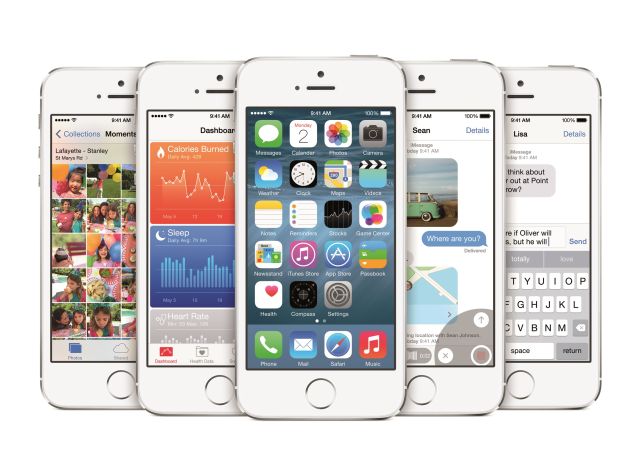
The annual iOS update cycle rolls on. This time, Apple is launching the eighth iteration of its operating system for the iPhone, iPad and iPod touch. iOS 8 is now available as a free download from Wednesday, September 17. The download and update process itself is quite easy, but there are a few important things you should keep in mind before you download iOS 8. Here's a guide to help you through the process with zero fuss.
Will my iPhone, iPad, iPod Touch get iOS 8?

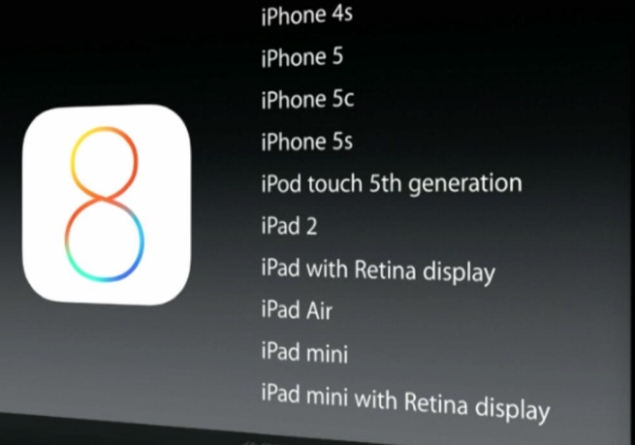
The first thing you should check is whether your Apple device is eligible for the update. Apple has announced that the following devices will get the iOS 8 update:

  • iPhone 4s
  • iPhone 5c
  • iPhone 5s
  • iPod touch 5th generation
  • iPad 2
  • iPad with Retina display
  • iPad Air
  • iPad mini
  • iPad mini with Retina display
apple_devices_ios8_compatible_list.jpg
Some iOS 8 features such as SMS Continuity will not be available on launch day, with Apple stating that they will be released in an update to iOS 8 closer to when OS X Yosemite launches.
Backup

Also Read Google Launches Android One Smartphones With Micromax, Karbonn, Spice

The next step is possibly the most important in the process - backup. Apple generally has had a great track record with no major cases of data loss reported after updates, but it is always better to be safe than sorry. Here's how to create a backup of your Apple device.
  1. While you can take a backup of your device on iCloud, we recommend that you use iTunes as the entire process is more reliable, especially if you have spotty connectivity.
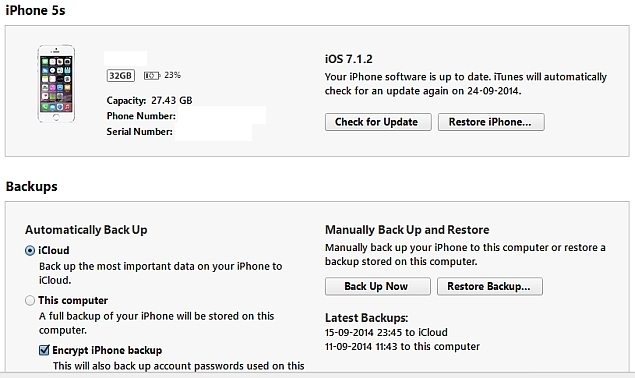
  2. Plug in your Apple device to a PC or Mac. Open iTunes and click iPhone (or iPad or iPod Touch) on the top-right, next to iTunes.
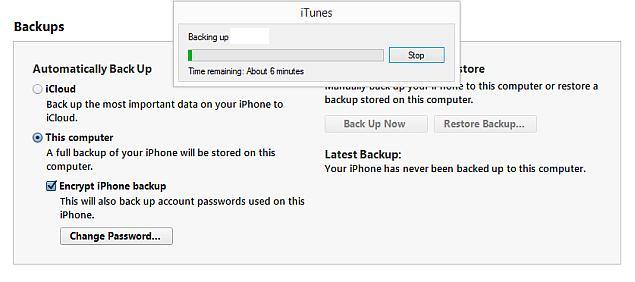
  3. Under Manually Back Up and Restore, click Back Up Now to start backing up your Apple device. This process takes some time especially if it's the first time you are backing up data. Make sure you have time to spare before you do this. It took us a little over 40 minutes to take a backup the first time, though your mileage may vary depending upon the storage capacity of your iPhone and how much data you have stored.
  4. Once essential data from the default apps has been backed up, iTunes will ask you if you want to transfer purchases. This basically takes a backup of all the apps installed on your phone, along with data downloaded within those apps. To do this, you will have to sign in with your Apple ID.
iTunes_iPhone_backup_1.jpg
If you don't have access to a computer, then you can use iCloud Backup. Remember that only 5GB is free and you'll have to pay Rs. 60 per month for 20GB of storage on iCloud. But since the actual apps themselves are not backed up to iCloud - only app data is, along with your photos, videos and other information - free storage is usually enough for most.
  1. To start backing up, on your iOS device, go to Settings > iCloud > Storage & Backup.
  2. Turn on the switch marked iCloud Backup. You'll get a warning telling you that your iPhone will not back up to your computer automatically. Tap okay.
  3. Once iCloud Backup is on, tap Back Up Now. This will start backing up your data to iCloud.
Wait for the backup to finish before proceeding further. You should see the Last Backup time (which should appear right below Back Up Now) correspond to something recent once the backup is completed.
Download and install iOS 8

Now that your data is safe, let's see how to download and install the iOS 8 update. You can update your device either directly via Wi-Fi or by connecting it to a PC or Mac and downloading the update via iTunes. Downloading it directly is easier, so let's try that first.

  1. On your iOS device, make sure you're connected to Wi-Fi (you can't download updates over cellular data) and plug it in to a power source.
  2. Go to Settings > General > Software Update
  3. On this screen, you'll see a message telling you your software is up to date. When iOS 8 is released, the message will tell you that a newer version is available. Tap Download and Install.
  4. Now the device will begin downloading the update. Once the download is complete, you'll see a pop-up asking if you'd like to install the update. Tap Install. That's it. When the update is installed, your iPhone will restart.
In case you want to install the update via iTunes, follow these steps.
  1. Download and install iTunes.
  2. In case you already have iTunes, update it to the latest version. You can do this by going to the menu bar in iTunes and clicking Help > Check for updates on a PC or iTunes > Check for updates from the menu bar on a Mac.
  3. Once you have got the latest version, connect the iOS device to your computer. In iTunes, select your device from the bar on the top-right.
  4. Now click on the Summary tab and click on Check for Update.
  5. To download and install iOS 8, click Download and Update.
apple_itunes_update_edited_1.jpg
Once the install is completed, follow the on-screen instructions to setup your iOS 8 device. You may be promoted to set up your device as new, restore from an iCloud Backup or restore from an iTunes Backup after reboot - select option 2 or 3 based on the backup method you selected above. You may also be prompted to re-enter your Wi-Fi or Apple ID/ iCloud password, or enable location services, while iPhone 5s users may be prompted to enter their fingerprint again - all that is normal.
Setting up iOS 8

Your iOS device will restart when the update is downloaded. After that, follow these steps.
  1. If the update was successful, you'll see a screen with "Update Completed" written in large font. Hit Continue.
  2. Now choose whether you want to enable location services. We suggest you tap Enable Location Services to ensure that anti-theft service Find My iPhone is enabled. You can easily enable this later by going to Settings > Privacy > Location.
  3. If you use iCloud, your iOS device will now ask you to enter your Apple ID password. Key it in and hit the Next button at the top.
  4. Apple's Terms and Conditions screen will now show up. You can read the whole thing if you wish or you could have it mailed to you by tapping Send by Email. To proceed, tap Agree (bottom-right) and again select Agree in the pop-up.
  5. Now Apple will ask if you want to upgrade to iCloud Drive. iCloud Drive lets you store files on the cloud and access them on all of your devices. If you want this, tap Upgrade to iCloud Drive. If not, choose Not Now.
  6. If you use iCloud Keychain, and you want all your passwords on your device again, then the this step is important. You can pick Use iCloud Security Code to have Apple send you an SMS with the code or tap Approve from Other Device to another device (that uses your Apple ID) to restore passwords. To ignore this, tap Don't Restore Passwords.
  7. Finally, Apple will show you the Welcome to iPhone/iPad/iPod touch screen. Tap Get Started to start using your iOS 8 device.

That's all. Now you're ready to enjoy iOS 8.


Also Read Windows 9 'Threshold' Update Leaked in Purported Screenshots, Video

NOTE: Feel Free To Comment....
Unknown  /  at  17:42  /  No comments

ios_8_ndtv.jpg

Also Read Moto G is Back with Upgraded Version

The annual iOS update cycle rolls on. This time, Apple is launching the eighth iteration of its operating system for the iPhone, iPad and iPod touch. iOS 8 is now available as a free download from Wednesday, September 17. The download and update process itself is quite easy, but there are a few important things you should keep in mind before you download iOS 8. Here's a guide to help you through the process with zero fuss.
Will my iPhone, iPad, iPod Touch get iOS 8?

The first thing you should check is whether your Apple device is eligible for the update. Apple has announced that the following devices will get the iOS 8 update:

  • iPhone 4s
  • iPhone 5c
  • iPhone 5s
  • iPod touch 5th generation
  • iPad 2
  • iPad with Retina display
  • iPad Air
  • iPad mini
  • iPad mini with Retina display
apple_devices_ios8_compatible_list.jpg
Some iOS 8 features such as SMS Continuity will not be available on launch day, with Apple stating that they will be released in an update to iOS 8 closer to when OS X Yosemite launches.
Backup

Also Read Google Launches Android One Smartphones With Micromax, Karbonn, Spice

The next step is possibly the most important in the process - backup. Apple generally has had a great track record with no major cases of data loss reported after updates, but it is always better to be safe than sorry. Here's how to create a backup of your Apple device.
  1. While you can take a backup of your device on iCloud, we recommend that you use iTunes as the entire process is more reliable, especially if you have spotty connectivity.
  2. Plug in your Apple device to a PC or Mac. Open iTunes and click iPhone (or iPad or iPod Touch) on the top-right, next to iTunes.
  3. Under Manually Back Up and Restore, click Back Up Now to start backing up your Apple device. This process takes some time especially if it's the first time you are backing up data. Make sure you have time to spare before you do this. It took us a little over 40 minutes to take a backup the first time, though your mileage may vary depending upon the storage capacity of your iPhone and how much data you have stored.
  4. Once essential data from the default apps has been backed up, iTunes will ask you if you want to transfer purchases. This basically takes a backup of all the apps installed on your phone, along with data downloaded within those apps. To do this, you will have to sign in with your Apple ID.
iTunes_iPhone_backup_1.jpg
If you don't have access to a computer, then you can use iCloud Backup. Remember that only 5GB is free and you'll have to pay Rs. 60 per month for 20GB of storage on iCloud. But since the actual apps themselves are not backed up to iCloud - only app data is, along with your photos, videos and other information - free storage is usually enough for most.
  1. To start backing up, on your iOS device, go to Settings > iCloud > Storage & Backup.
  2. Turn on the switch marked iCloud Backup. You'll get a warning telling you that your iPhone will not back up to your computer automatically. Tap okay.
  3. Once iCloud Backup is on, tap Back Up Now. This will start backing up your data to iCloud.
Wait for the backup to finish before proceeding further. You should see the Last Backup time (which should appear right below Back Up Now) correspond to something recent once the backup is completed.
Download and install iOS 8

Now that your data is safe, let's see how to download and install the iOS 8 update. You can update your device either directly via Wi-Fi or by connecting it to a PC or Mac and downloading the update via iTunes. Downloading it directly is easier, so let's try that first.

  1. On your iOS device, make sure you're connected to Wi-Fi (you can't download updates over cellular data) and plug it in to a power source.
  2. Go to Settings > General > Software Update
  3. On this screen, you'll see a message telling you your software is up to date. When iOS 8 is released, the message will tell you that a newer version is available. Tap Download and Install.
  4. Now the device will begin downloading the update. Once the download is complete, you'll see a pop-up asking if you'd like to install the update. Tap Install. That's it. When the update is installed, your iPhone will restart.
In case you want to install the update via iTunes, follow these steps.
  1. Download and install iTunes.
  2. In case you already have iTunes, update it to the latest version. You can do this by going to the menu bar in iTunes and clicking Help > Check for updates on a PC or iTunes > Check for updates from the menu bar on a Mac.
  3. Once you have got the latest version, connect the iOS device to your computer. In iTunes, select your device from the bar on the top-right.
  4. Now click on the Summary tab and click on Check for Update.
  5. To download and install iOS 8, click Download and Update.
apple_itunes_update_edited_1.jpg
Once the install is completed, follow the on-screen instructions to setup your iOS 8 device. You may be promoted to set up your device as new, restore from an iCloud Backup or restore from an iTunes Backup after reboot - select option 2 or 3 based on the backup method you selected above. You may also be prompted to re-enter your Wi-Fi or Apple ID/ iCloud password, or enable location services, while iPhone 5s users may be prompted to enter their fingerprint again - all that is normal.
Setting up iOS 8

Your iOS device will restart when the update is downloaded. After that, follow these steps.
  1. If the update was successful, you'll see a screen with "Update Completed" written in large font. Hit Continue.
  2. Now choose whether you want to enable location services. We suggest you tap Enable Location Services to ensure that anti-theft service Find My iPhone is enabled. You can easily enable this later by going to Settings > Privacy > Location.
  3. If you use iCloud, your iOS device will now ask you to enter your Apple ID password. Key it in and hit the Next button at the top.
  4. Apple's Terms and Conditions screen will now show up. You can read the whole thing if you wish or you could have it mailed to you by tapping Send by Email. To proceed, tap Agree (bottom-right) and again select Agree in the pop-up.
  5. Now Apple will ask if you want to upgrade to iCloud Drive. iCloud Drive lets you store files on the cloud and access them on all of your devices. If you want this, tap Upgrade to iCloud Drive. If not, choose Not Now.
  6. If you use iCloud Keychain, and you want all your passwords on your device again, then the this step is important. You can pick Use iCloud Security Code to have Apple send you an SMS with the code or tap Approve from Other Device to another device (that uses your Apple ID) to restore passwords. To ignore this, tap Don't Restore Passwords.
  7. Finally, Apple will show you the Welcome to iPhone/iPad/iPod touch screen. Tap Get Started to start using your iOS 8 device.

That's all. Now you're ready to enjoy iOS 8.


Also Read Windows 9 'Threshold' Update Leaked in Purported Screenshots, Video

NOTE: Feel Free To Comment....

Posted in: , Read Complete Article»

Saturday, 16 August 2014

10 Tips to Make your Android Phone Run Faster & Smoother

Smartphones became a part of our Lives these days. Increase in the Sales resulted in Increase in Production of Smartphones which are produced by many companies. Also the prices of the high end phones are being replaced by small budget phones and the production of those have reached the sky limit. But the costly high end phone owners regret because of the slower performance and even small budget phones are performing more than that. So there are many regretting points for buying High end Smartphones. All these can be replaced by following simple tricks thereby Making your Smartphone Faster and Smoother.

Also Read Learn To Unroot Android Device Step By Step


So, Here are some Tips which may help you to Increase Speed of your Android Smartphone so as to Run Smoothly.

Keep Yourself Updated with Latest Software and Apps

Check for Updates which you receive from your servers regularly. There will be minor bugs which are being updated and which increase the Speed at times. SO, never neglect or go revert back to older versions as there will be bugs which cause functionality errors. Software updates tend to come OTA (Over The Air) and you should be automatically prompted to install them, but it doesn’t hurt to check. Go to Settings > About device > Software update and Check for Updates and update as soon as possible.Check-for-UpdatesAlso there will be Apps which are to be updated in Google Play Store Services. So, goto App Store, then to My Apps and Update Apps which you use. Though the size of the App may be more, Donot hesitate to Download as the previous Version faced some bugs and they will be fixed on Updates.

Also Read 5 Tips for Samsung Galaxy S5 Users to Run Faster

Give Less Priority to Landscape Wallpapers & Least to Live Wallpapers

Wallpapers do play a Key Role in boosting up your Smartphone Device. Don’t prefer for Landscape Images and Extremely High End Wallpapers or Screensavers which have high resolutions and high memory intake.hd-wallpapersAlso, don’t use Live Wallpapers which can even reduce your Battery and also make your phone slow. Live Wallpapers are just meant for special Appearance on Screen when it’s idle. But Better not to prefer Live Wallpapers or GIF Images which affect the increase in speed of your mobile. Its better to stick to a Static Image which can be well performed on your Smart Device and Thus Increase the Speed.

Clean Up your Home Screen

You should clean away any unused icons and limit your widgets to the essentials. The less cluttered your home screen is, the better in terms of performance. Don’t Mess the Homescreen with all App Shortcuts and Widgets you are provided with.clean-up-homescreenReduce the number of Apps and Widgets on your screen and make that free, So the Homescreen will be flexible and Smooth.

Turn off or reduce animations

Make your Android Smartphone feel snappier by reducing or Turning OFF some of Animations. All you need to enable Developer options in order to do this. Go to Settings > About phone and scroll down to the System section to look for Build number. Tap on it seven times and you should see a message about being a developer. You can now go back to the previous menu and you should see Developer options listed under System.

Also Read Micromax Canvas Knight Cameo Now Available Online at Rs. 12,777

    
Head in there and scroll down to find Window animation scale, Transition animation scale, and Animator duration scale. Tap each in turn and set it to .5x or off. Pick an option and find out what suits you, if you don’t like just go back in and change the values again.

Disable & Uninstall Unused Applications

There are lots and lots of Apps which are to be download unnoticed and are installed without prior information. Also there will be apps which are to be downloaded for time being but of Large Size and occupies Cache Memory and RAM. Also RAM Utilization will be more if you install many Apps. So, you need to have more RAM or to Increase RAM
Delete as many Unused And Unwanted Apps. This is very important by which you can Make ease interface with your Smartphone. Select the App which you won’t use and remove by clicking on Uninstall Button. Mak sure that the data is safe and is not Deleted. You can even uninstall multiple Apps by using Easy Uninstaller App where you can just select the Apps and Throw them away from your Smartphone.

Clear Cached App data

Cached data for apps help to load more quickly and increase the functionality of the App. It makes the App go faster. But it can build up over time to take up quite a lot of space. Also there will potentially be cached data in there for apps that you no longer use. Sometimes clearing cached data for an app can also help clear up flaky behavior.
 If you want to pick individual apps then head into Settings > Apps and slide over the All tab and tap on the relevant app then choose Clear cache. If you’ve decided to just clear the whole lot then go to Settings > Storage and tap on Cached data and then tap OK.

Prefer Third Party Launchers

Some of the customizations that OEMs make to their devices can be heavy-handed. Vexed up with using the same old default launcher? If you want to change the feel of navigating around, and tweak some settings to make it feel speedier, then you might find that a third-party launcher does the trick. Try out something like Nova Launcher, Buzz Launcher, or Apex Launcher. Experiment with the settings and you should find that your device feels a lot faster.

Also Read Busted: 5 Myths About Facebook's Messenger App

Limit or Disable Background Data (Reduce Auto Sync)

The Emails like Gmail, Facebook, Twitter, backup app etc etc will always want to ping the Internet for data on a regular basis. All that syncing not only bites up your battery power, but also take up system resources and slows down your device.
restrict-background-data   running-apps-limit
There are some services you may want to sync in real time, but there are others you can check manually. For example, if you don’t need to be alerted the moment you get a Facebook notification or receive an email to your personal account, you can prevent those from connecting in the background.  Stop Auto Syncing and do a manual sync when you seriously need it.
You could go to Settings and find Auto-sync under Accounts and just turn it off altogether, but that will be too drastic for most people. Instead why not just reduce the sync frequency and remove any accounts you don’t really need? For a lot of apps, like Facebook, you’ll need to open up the app and find the settings to reduce the sync frequency.

Factory Reset your Smartphone When Needed

There will be a junk files ready to be accumulated in your phone which is so called as a dump file. This is just because the data which is stored in memory. So, its better to perform a factory Reset when you feel like its slowing down or getting struck frequently while playing high end games or running background applications.

 Go for Custom Rooting, ROMing

Risk takers and advanced users can also root their device , which will open the door to new features and even greater performance boosts. Rooting gives you the ability to overclock the device’s processor, install a custom ROM, and other things; however it also voids your warranty and could cause irreversible damage to the device.
build-your-own-android-app
So, Follow the above 10 Tips to Increase the Speed of your Android. By following the above tips, your Android Device runs Faster and Smoother. If you have any doubts or Issues with your Android device, DO comment below. Any Tips and Tricks unmentioned are accepted.


Source: http://www.burptech.com/

Also Read How to Block Someone on Gmail?

NOTE: Feel Free To Comment....
Unknown  /  at  13:11  /  No comments

Smartphones became a part of our Lives these days. Increase in the Sales resulted in Increase in Production of Smartphones which are produced by many companies. Also the prices of the high end phones are being replaced by small budget phones and the production of those have reached the sky limit. But the costly high end phone owners regret because of the slower performance and even small budget phones are performing more than that. So there are many regretting points for buying High end Smartphones. All these can be replaced by following simple tricks thereby Making your Smartphone Faster and Smoother.

Also Read Learn To Unroot Android Device Step By Step


So, Here are some Tips which may help you to Increase Speed of your Android Smartphone so as to Run Smoothly.

Keep Yourself Updated with Latest Software and Apps

Check for Updates which you receive from your servers regularly. There will be minor bugs which are being updated and which increase the Speed at times. SO, never neglect or go revert back to older versions as there will be bugs which cause functionality errors. Software updates tend to come OTA (Over The Air) and you should be automatically prompted to install them, but it doesn’t hurt to check. Go to Settings > About device > Software update and Check for Updates and update as soon as possible.Check-for-UpdatesAlso there will be Apps which are to be updated in Google Play Store Services. So, goto App Store, then to My Apps and Update Apps which you use. Though the size of the App may be more, Donot hesitate to Download as the previous Version faced some bugs and they will be fixed on Updates.

Also Read 5 Tips for Samsung Galaxy S5 Users to Run Faster

Give Less Priority to Landscape Wallpapers & Least to Live Wallpapers

Wallpapers do play a Key Role in boosting up your Smartphone Device. Don’t prefer for Landscape Images and Extremely High End Wallpapers or Screensavers which have high resolutions and high memory intake.hd-wallpapersAlso, don’t use Live Wallpapers which can even reduce your Battery and also make your phone slow. Live Wallpapers are just meant for special Appearance on Screen when it’s idle. But Better not to prefer Live Wallpapers or GIF Images which affect the increase in speed of your mobile. Its better to stick to a Static Image which can be well performed on your Smart Device and Thus Increase the Speed.

Clean Up your Home Screen

You should clean away any unused icons and limit your widgets to the essentials. The less cluttered your home screen is, the better in terms of performance. Don’t Mess the Homescreen with all App Shortcuts and Widgets you are provided with.clean-up-homescreenReduce the number of Apps and Widgets on your screen and make that free, So the Homescreen will be flexible and Smooth.

Turn off or reduce animations

Make your Android Smartphone feel snappier by reducing or Turning OFF some of Animations. All you need to enable Developer options in order to do this. Go to Settings > About phone and scroll down to the System section to look for Build number. Tap on it seven times and you should see a message about being a developer. You can now go back to the previous menu and you should see Developer options listed under System.

Also Read Micromax Canvas Knight Cameo Now Available Online at Rs. 12,777

    
Head in there and scroll down to find Window animation scale, Transition animation scale, and Animator duration scale. Tap each in turn and set it to .5x or off. Pick an option and find out what suits you, if you don’t like just go back in and change the values again.

Disable & Uninstall Unused Applications

There are lots and lots of Apps which are to be download unnoticed and are installed without prior information. Also there will be apps which are to be downloaded for time being but of Large Size and occupies Cache Memory and RAM. Also RAM Utilization will be more if you install many Apps. So, you need to have more RAM or to Increase RAM
Delete as many Unused And Unwanted Apps. This is very important by which you can Make ease interface with your Smartphone. Select the App which you won’t use and remove by clicking on Uninstall Button. Mak sure that the data is safe and is not Deleted. You can even uninstall multiple Apps by using Easy Uninstaller App where you can just select the Apps and Throw them away from your Smartphone.

Clear Cached App data

Cached data for apps help to load more quickly and increase the functionality of the App. It makes the App go faster. But it can build up over time to take up quite a lot of space. Also there will potentially be cached data in there for apps that you no longer use. Sometimes clearing cached data for an app can also help clear up flaky behavior.
 If you want to pick individual apps then head into Settings > Apps and slide over the All tab and tap on the relevant app then choose Clear cache. If you’ve decided to just clear the whole lot then go to Settings > Storage and tap on Cached data and then tap OK.

Prefer Third Party Launchers

Some of the customizations that OEMs make to their devices can be heavy-handed. Vexed up with using the same old default launcher? If you want to change the feel of navigating around, and tweak some settings to make it feel speedier, then you might find that a third-party launcher does the trick. Try out something like Nova Launcher, Buzz Launcher, or Apex Launcher. Experiment with the settings and you should find that your device feels a lot faster.

Also Read Busted: 5 Myths About Facebook's Messenger App

Limit or Disable Background Data (Reduce Auto Sync)

The Emails like Gmail, Facebook, Twitter, backup app etc etc will always want to ping the Internet for data on a regular basis. All that syncing not only bites up your battery power, but also take up system resources and slows down your device.
restrict-background-data   running-apps-limit
There are some services you may want to sync in real time, but there are others you can check manually. For example, if you don’t need to be alerted the moment you get a Facebook notification or receive an email to your personal account, you can prevent those from connecting in the background.  Stop Auto Syncing and do a manual sync when you seriously need it.
You could go to Settings and find Auto-sync under Accounts and just turn it off altogether, but that will be too drastic for most people. Instead why not just reduce the sync frequency and remove any accounts you don’t really need? For a lot of apps, like Facebook, you’ll need to open up the app and find the settings to reduce the sync frequency.

Factory Reset your Smartphone When Needed

There will be a junk files ready to be accumulated in your phone which is so called as a dump file. This is just because the data which is stored in memory. So, its better to perform a factory Reset when you feel like its slowing down or getting struck frequently while playing high end games or running background applications.

 Go for Custom Rooting, ROMing

Risk takers and advanced users can also root their device , which will open the door to new features and even greater performance boosts. Rooting gives you the ability to overclock the device’s processor, install a custom ROM, and other things; however it also voids your warranty and could cause irreversible damage to the device.
build-your-own-android-app
So, Follow the above 10 Tips to Increase the Speed of your Android. By following the above tips, your Android Device runs Faster and Smoother. If you have any doubts or Issues with your Android device, DO comment below. Any Tips and Tricks unmentioned are accepted.


Source: http://www.burptech.com/

Also Read How to Block Someone on Gmail?

NOTE: Feel Free To Comment....

Posted in: , , Read Complete Article»

Friday, 15 August 2014

Micromax Canvas Knight Cameo Now Available Online at Rs. 12,777

micromax_canvas_knight_cameo_snapdeal.jpg

Also Read Oppo N1 Mini With 13-Megapixel Swivel Camera Launched at Rs. 26,990

Micromax seems all set to launch the octa-core Canvas Knight Cameo A290 smartphone in India soon, if claims by an established retailer from Mumbai, and a listing by an online retailer, are any indication.
Claiming current availability along with a price of Rs. 12,499, mobile retailer Mahesh Telecom has further listed the specifications of the unannouncedMicromax Canvas Knight Cameo A290 along with an image on its Facebook page. The retailer has also tweeted saying, "#Micromax Canvas Knight Camera A290, now available for Rs. 12,499 only."
It's worth noting that we are yet to hear an official announcement from Micromax about the device.
According to the specifications listed by Mahesh Telecom, the dual-SIM Micromax Canvas Knight Cameo A290 will run Android 4.4.2 KitKat out-of-the-box, and feature a 4.7-inch HD (720x1280 pixels) display.
While the Mumbai retailer notes the Canvas Knight Cameo A290 smartphone packs a true octa-core processor coupled with 1GB of RAM, the clock-speed speed was not revealed. The smartphone is said to sport an 8-megapixel autofocus rear camera with LED flash, while there is a 5-megapixel front-facing camera also onboard. The 8GB of inbuilt storage on the Canvas Knight Cameo A290 is said to be expandable up to 32GB (via microSD card).
As mentioned earlier, the Micromax Canvas Knight Cameo A290 smartphone has already been listed by an online retailer at Rs. 12,777.
The Canvas Knight Cameo A290 specifications listed by the Mumbai retailer match those listed by Snapdeal, which however additionally adds a 1.4GHz clock-speed for the octa-core processor, and a 2010mAh battery capacity, both details that were missed by the Mumbai-based retailer. Connectivity options on the Micromax Canvas Knight Cameo A290 smartphone include 3G, GPRS/ EDGE, Wi-Fi 802.11 b/g/n, Bluetooth 4.0, and GPS.

Micromax Canvas Knight Cameo

Micromax Canvas Knight Cameo

Display

4.70-inch

Processor

1.4GHz

Front Camera

 5-megapixel

Resolution

 720x1280 pixels

RAM

 1GB

OS

 Android 4.4

Storage

8GB

Rear Camera

8-megapixel

Battery capacity

2010mAh


Also Read Specs Of Asus Fonepad 7

NOTE: Feel Free To Comment....
Unknown  /  at  14:18  /  No comments

micromax_canvas_knight_cameo_snapdeal.jpg

Also Read Oppo N1 Mini With 13-Megapixel Swivel Camera Launched at Rs. 26,990

Micromax seems all set to launch the octa-core Canvas Knight Cameo A290 smartphone in India soon, if claims by an established retailer from Mumbai, and a listing by an online retailer, are any indication.
Claiming current availability along with a price of Rs. 12,499, mobile retailer Mahesh Telecom has further listed the specifications of the unannouncedMicromax Canvas Knight Cameo A290 along with an image on its Facebook page. The retailer has also tweeted saying, "#Micromax Canvas Knight Camera A290, now available for Rs. 12,499 only."
It's worth noting that we are yet to hear an official announcement from Micromax about the device.
According to the specifications listed by Mahesh Telecom, the dual-SIM Micromax Canvas Knight Cameo A290 will run Android 4.4.2 KitKat out-of-the-box, and feature a 4.7-inch HD (720x1280 pixels) display.
While the Mumbai retailer notes the Canvas Knight Cameo A290 smartphone packs a true octa-core processor coupled with 1GB of RAM, the clock-speed speed was not revealed. The smartphone is said to sport an 8-megapixel autofocus rear camera with LED flash, while there is a 5-megapixel front-facing camera also onboard. The 8GB of inbuilt storage on the Canvas Knight Cameo A290 is said to be expandable up to 32GB (via microSD card).
As mentioned earlier, the Micromax Canvas Knight Cameo A290 smartphone has already been listed by an online retailer at Rs. 12,777.
The Canvas Knight Cameo A290 specifications listed by the Mumbai retailer match those listed by Snapdeal, which however additionally adds a 1.4GHz clock-speed for the octa-core processor, and a 2010mAh battery capacity, both details that were missed by the Mumbai-based retailer. Connectivity options on the Micromax Canvas Knight Cameo A290 smartphone include 3G, GPRS/ EDGE, Wi-Fi 802.11 b/g/n, Bluetooth 4.0, and GPS.

Micromax Canvas Knight Cameo

Micromax Canvas Knight Cameo

Display

4.70-inch

Processor

1.4GHz

Front Camera

 5-megapixel

Resolution

 720x1280 pixels

RAM

 1GB

OS

 Android 4.4

Storage

8GB

Rear Camera

8-megapixel

Battery capacity

2010mAh


Also Read Specs Of Asus Fonepad 7

NOTE: Feel Free To Comment....

Posted in: , , Read Complete Article»

About

This blog belong to all our youngster friendz, who believe in sharing their knowledge with others and want to try to hackin', crackin' , full version applications at free of cost.
you will found here valuable stuffs.

Labels

adf.ly blocked (1) android (109) Android and PC (19) android games (11) android news (3) android tricks (43) Antivirus (11) Anvsoft (1) apple (40) asha phones (1) avast (1) avast pro antivirus 8 2013 (1) avg (1) AVG pc tuneup 2013 full version (1) avira (1) blackberry (1) blogspot (2) body_language (1) bootable usb (1) Browsers (16) c cleaner pro + business (1) Cheatbook 2013 (1) Chetan Bhagat (1) compressor (1) crac (1) Crack (1) crack + keygen (2) cyberlink power2go full version (1) daemon tools 5.2 full version (1) daemon tools patch (1) defender (2) dictionary (1) direct link (1) DivX Pro 7 (1) Ebook (2) eset (1) etc (1) facebook (16) Firewall (2) free recharge tricks (1) free sms (1) FRUIT NINJA for windows full version (1) full version (8) Full Version MS Office 13 (1) GTA Sandreas (1) hack (4) hack pc (3) hacking using keylogger (1) hardware (1) hiDownload platinum 8 (1) how to (6) how to install .net (1) HTML (1) idm (1) idm crack (1) IDM full version (1) image editor (2) install .net in windows 8 (1) internet tricks (37) iPhone 5c (2) job (1) k j activator (1) kaspersky (2) keygen (2) leaked images (1) license key (1) manual updates (1) mediafire (1) MEDIAFIRE DOWNLOAD (2) mediafire link (2) mobiles (42) music player (1) nfs most wanted (1) Office 13 Activator (1) official site update (1) offline updates (1) patch (4) PC (3) pc customize (1) PC Drivers (2) pc games (15) pc games cheats (11) PC Software (152) PC tricks (146) PdaNET 3.50 (1) PDF (3) phone specifications (43) pic viewer (3) power iso 5.6 (1) premium zbigz account (1) problem with .net in windows 8 (1) review (11) reviews (2) Revolution 2020 PDF (1) science (2) sharebeast download (6) sharebeast link (2) symbian mobiles (2) tech knowledge (33) Tech News (343) tech reviews (146) Torrent To IDM (1) Tune-Up 2014 Full Version (1) Ubuntu Mobiles (1) video player (13) video tutorial (1) Web design (1) window 8.1 tricks (12) windows 8 activator (1) Windows 8 USB Installer Maker (1) windows phones (16) winrar 5 full version (1)
Copyright © 2014 SimplyGet. WP Theme-junkie converted by Bloggertheme9
Blogger templates. Proudly Powered by Blogger.